

Servers
Servers are cloud-based development environments running within your workspaces. Each server provides an integrated IDE where you and your Agents collaborate to build, test, and iterate on your work.
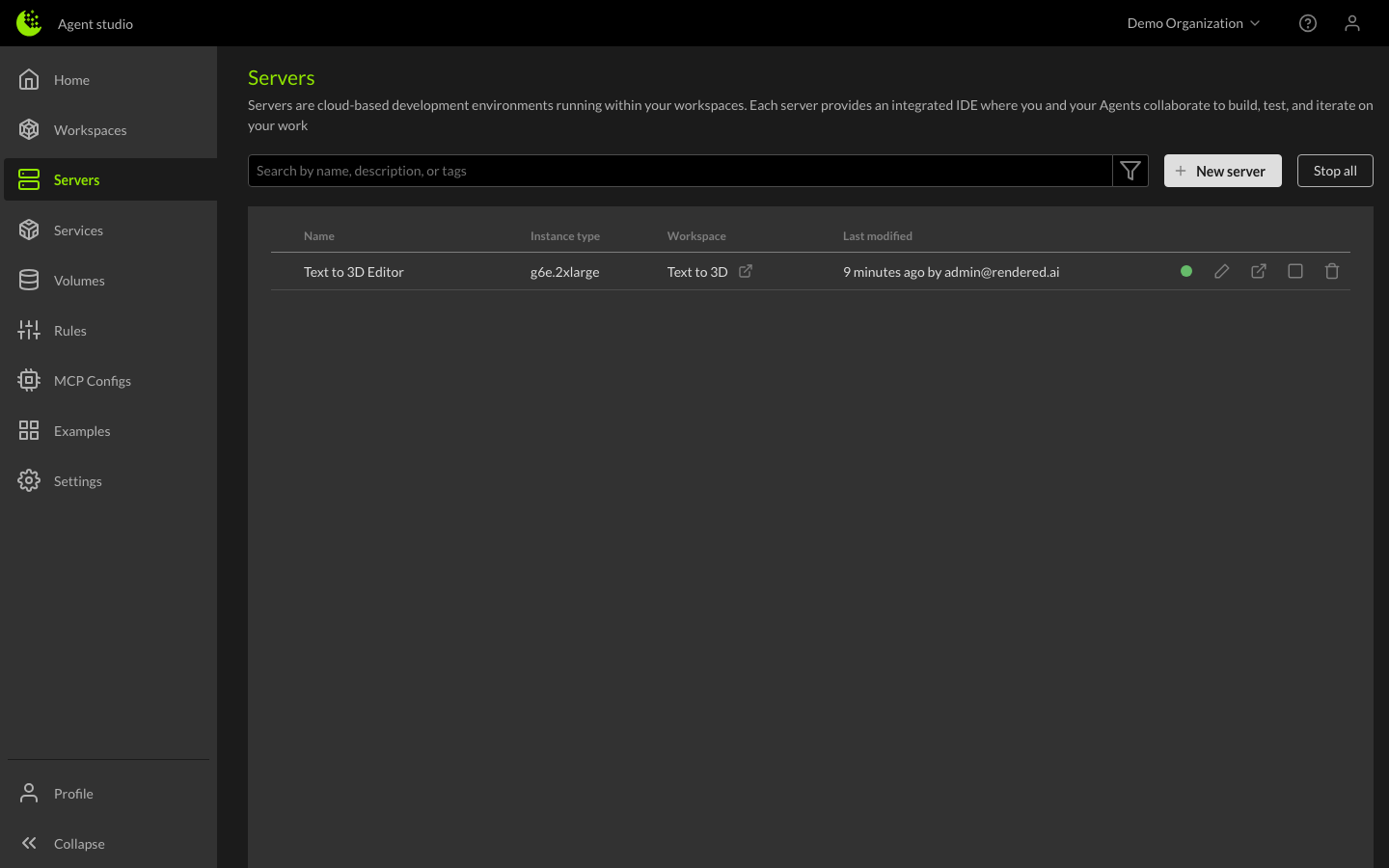
Browsing servers
The Servers page shows a table of all servers across your Organization with their name, instance type, associated workspace (with a link), and last modified time. Each row shows the server's status and provides action buttons to edit, open, stop, or delete the server.
You can also use the Stop all button to stop all running servers at once — useful for managing costs when you're done working.
Creating a server
Servers can be created in two ways:
- From the workspace details — Click the create server button in the server manager at the top of the workspace detail page.
- From the Servers page — Click the New server button to create a server and assign it to a workspace.
When you create a new workspace, a server is automatically started for you.
When creating a server, you configure:
- Instance Type - The compute resources available (CPU, RAM, GPU). Larger instances provide more power for resource-intensive tasks.
- Storage - Block storage size in GB. This is the disk space available on your server for files, packages, and data.
Instance types
You can choose from a range of instance types optimized for different workloads:
| Category | Examples | Best for |
|---|---|---|
| General Purpose | t3.xlarge, t3.2xlarge | Standard development, lightweight workloads |
| GPU Accelerated | g4dn.xlarge, g4dn.2xlarge | Machine learning, rendering, GPU-intensive tasks |
Instance type pricing is displayed during selection and is billed hourly while the server is running. See Costs and Billing for details.
Launching a server
Once a server is running, click the Launch button to connect. You can launch into:
- Browser - Opens the Web IDE in a new tab with no local setup required.
- VS Code - Connects via the VS Code Remote SSH extension.
- Cursor - Connects via Cursor's remote SSH support.
- Windsurf - Connects via Windsurf's remote SSH support.
Desktop IDEs require SSH keys to be configured in your Profile settings.
Managing servers
Starting and stopping
Servers can be started and stopped from the workspace details. A stopped server retains its storage and configuration but does not incur compute costs. Storage costs continue while the server exists.
Multiple servers
A workspace can have multiple servers running simultaneously. The server manager in the workspace details shows all servers and their current status:
- Running - The server is active and ready to use
- Stopped - The server is inactive but retains its data
- Transitioning - The server is starting up or shutting down
SSH key setup
To connect with desktop IDEs, you need SSH keys configured in your profile:
- Navigate to your Profile settings
- Add your public SSH key
- Once configured, desktop IDE launch options become available
Learn more
- Web IDE - The browser-based development environment.
- Tyrell Agent - The AI-powered assistant within your server.
- Rendered.ai Extension - The synchronization extension for your workspace.