

Workspaces
Workspaces can be thought of as configurations that users can start servers from. You can attach Services and Volumes to Workspaces to make them available on the server, and manage how Agents work with you through Workspace Rules.
To see a list of your Workspaces, click the Workspaces icon in the left sidebar.
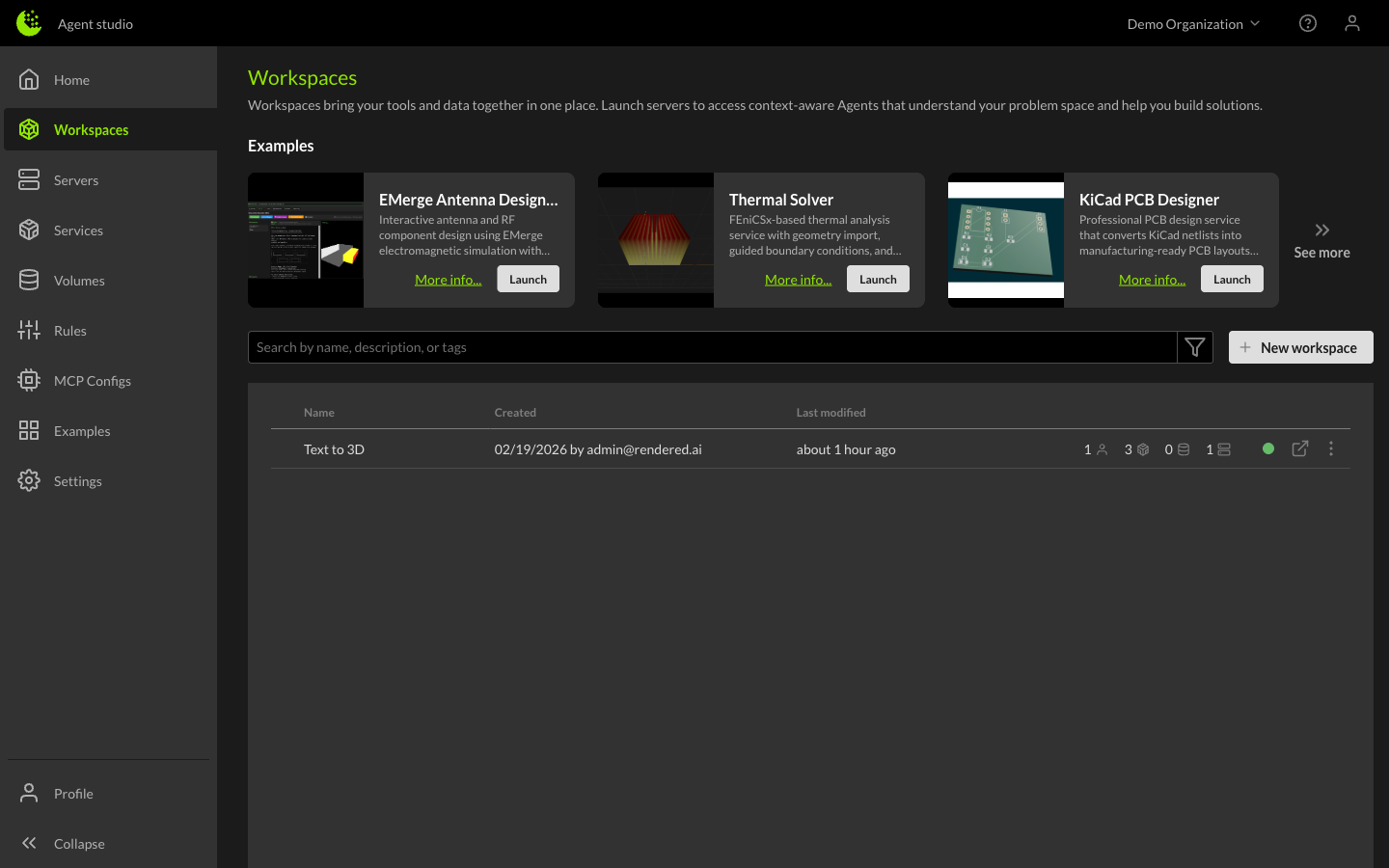
The Workspaces page shows an Examples carousel at the top with pre-configured workspace templates you can launch with one click. Below that is a table of your existing workspaces showing the name, creation date, last modified time, and summary badges for members, services, volumes, and servers attached to each workspace.
If you do not see any workspaces, create a new one by clicking the New Workspace button, or launch an example workspace from the carousel.
Creating a new Workspace
To create a Workspace, click the New Workspace button. You will be prompted to fill out information about the Workspace:
- Workspace name - The name you want to give the Workspace.
- Description - A short description about what the Workspace is for.
- Objective - An objective for the workspace can help guide Agents.
- Volumes - Volumes store data that can persist across Servers and Workspaces.
- Services - Services have tools that can help you get work done.
- Instance Type - When a new workspace is created, a server is auto-started for you. Select the instance type to use for that first server.
- Tags - Optional tags to help organize and filter your workspaces.
When you select the Create button, you will be launched directly into the workspace's first Server.
Workspace configuration and resource management
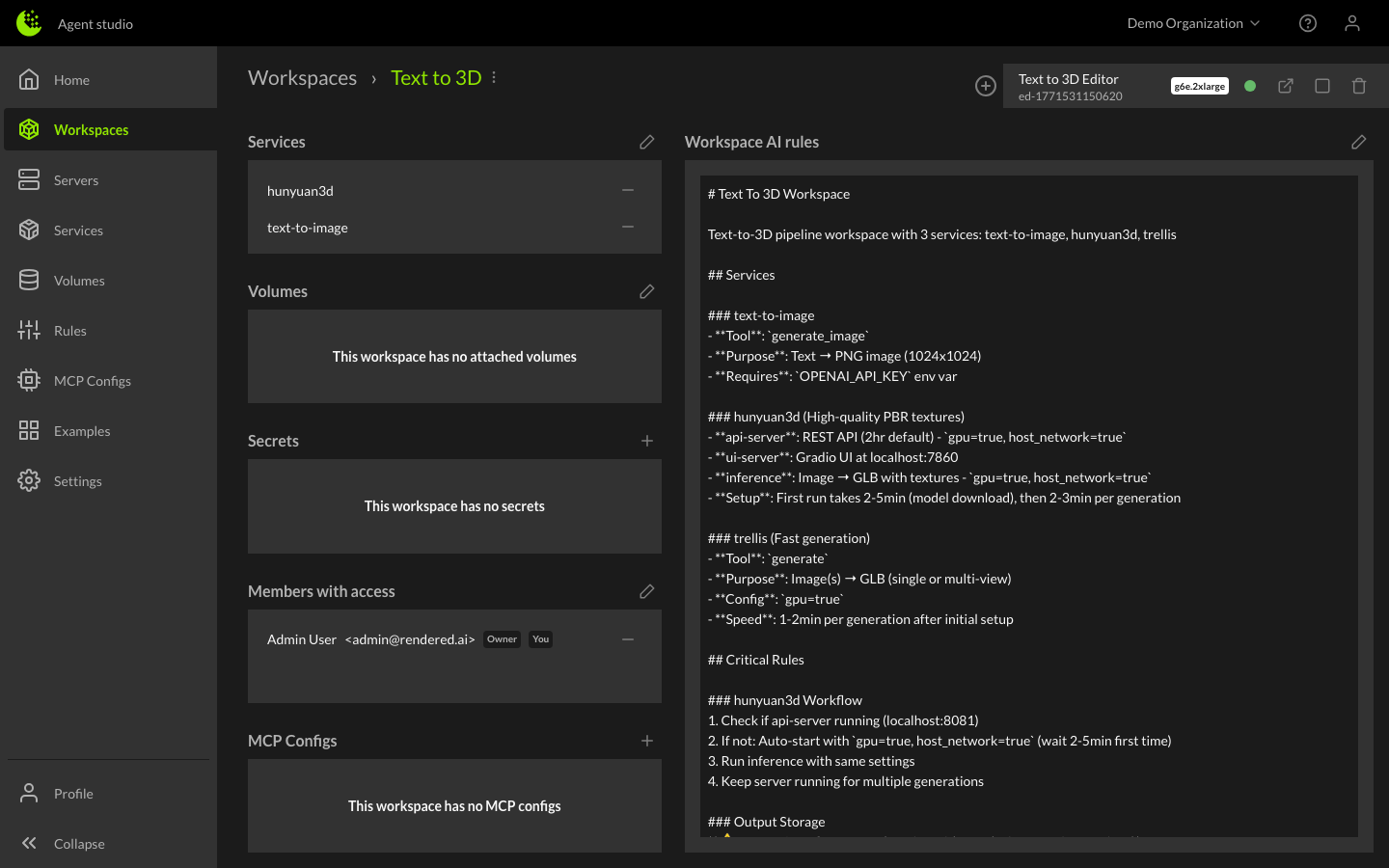
You can click on a workspace to see a list of the Servers in the Workspace and the Resources available to the Servers.
Managing workspace members and access
Decide who in the Organization has access to the Workspace. These users can create and access the Servers, modify Workspace rules and manage other resources. Note that only the workspace owner can delete the workspace.
Defining Agent behavior with workspace rules
Rules are one of the best ways to keep Agents focused and capable. Rules come from the Platform, Organization, Workspace, User and Services and are compiled into the Agent's context at startup. Workspace rules are a great place to define the workflows you'd like automated or details specific to the project.
Attaching services so Agents can call their tools
Attaching Services to the Workspace brings them into the Agent's context, allowing the Agent to execute tool calls with the Services. They are a great way to wrap complex tools that have long runtimes, where you need repeatable results.
Attaching volumes to provide data access
Attaching Volumes to the Workspace gives the Agents access to the data within the volume.
Connecting MCP servers to extend Agent capabilities
MCP Configs are how you get additional MCP servers configured for your Agent, making them more capable with tool calls and access to outside data.
Adding Agent Skills to give Agents pre-built expertise
Agent Skills are packaged capabilities that can be uploaded to the platform and added to servers. They give Agents pre-built expertise for common tasks like code review, deployment workflows, or domain-specific operations — without needing to write custom prompts each time.
Storing API keys and credentials as environment variables
Secrets can be used to set environment variables on the servers. They are how we store and pass API keys securely to the machine.