

Collaboration
Agent Studio is built for teams. Your Organization is the shared space where members collaborate — accessing the same services, volumes, and rules. This guide covers how to invite members, manage roles, and share workspaces.
What's shared by default
When someone joins your Organization, they automatically have access to:
- Services — All services in the Organization are available to every member.
- Organization Volumes — Shared storage volumes are accessible across workspaces for all members.
- Rules — Organization-level rules apply to all workspaces and members.
- MCP Configs — Organization-level MCP configurations are available (though disabled per workspace by default).
Workspaces and their workspace-specific volumes are not shared by default — they belong to the user who created them.
Inviting members
To invite someone to your Organization:
- Navigate to Settings from the left sidebar.
- Click the Members tab.
- Click the Invite member button.
- Enter the person's email address.
- Select a role — Admin or Member.
- Click Invite.
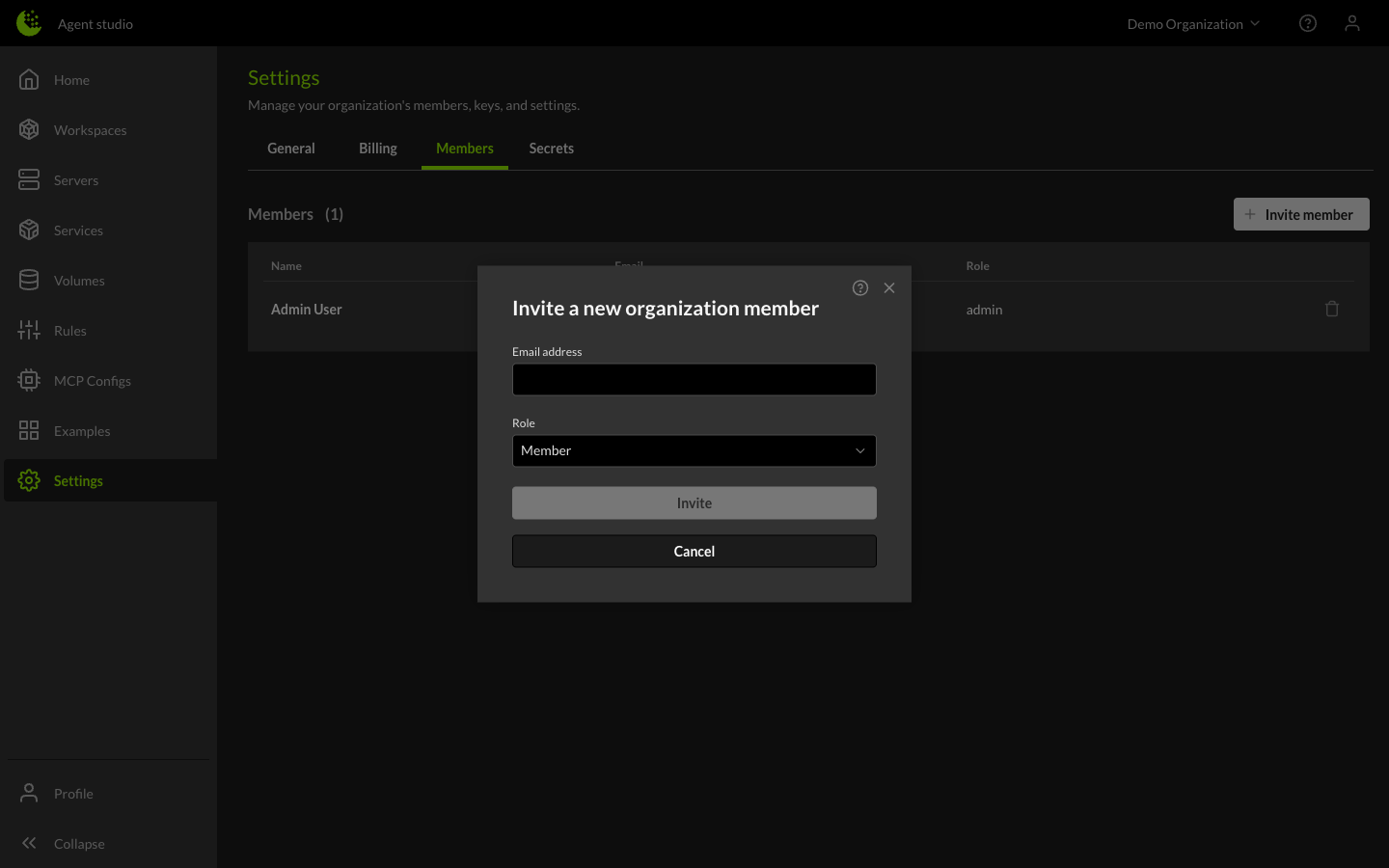
The invited user will receive an email with instructions to join your Organization.
Admin and Member roles
There are two roles in an Organization:
| Role | Description |
|---|---|
| Admin | Full access to Organization settings, member management, billing, and all resources. Can invite and remove members, manage secrets, and configure Organization-level rules and MCP configs. |
| Member | Can create and manage their own workspaces, use attached services, and access shared volumes. Cannot modify Organization settings or manage other members. |
Sharing workspaces
Workspaces are private to the creator by default. To collaborate on a workspace with other members:
- Open the workspace from the Workspaces page.
- Find the Members with access section.
- Click the edit button to open the Manage attached members dialog.
- Search for and select the member you want to share with.
- Click Share.
Shared members can access the workspace, its servers, and any workspace-specific volumes. To remove a member's access, click the Remove button next to their name in the Members with access section.
ℹ Tip
The workspace creator is listed as the Owner and always has access. Ownership cannot be transferred.
How to manage member access and permissions
From the Settings > Members tab, Admins can:
- View all Organization members with their name, email, and role.
- Invite new members.
- Remove members or change their role using the options menu on each member row.
⚠ Warning
Removing a member from the Organization revokes their access to all shared resources. Their personal workspaces and data are not deleted.