

Volumes
Volumes are shared storage containers that persist data independently of any single server. They allow you to store files, datasets, models, and other assets that can be accessed across multiple servers and workspaces within your Organization.
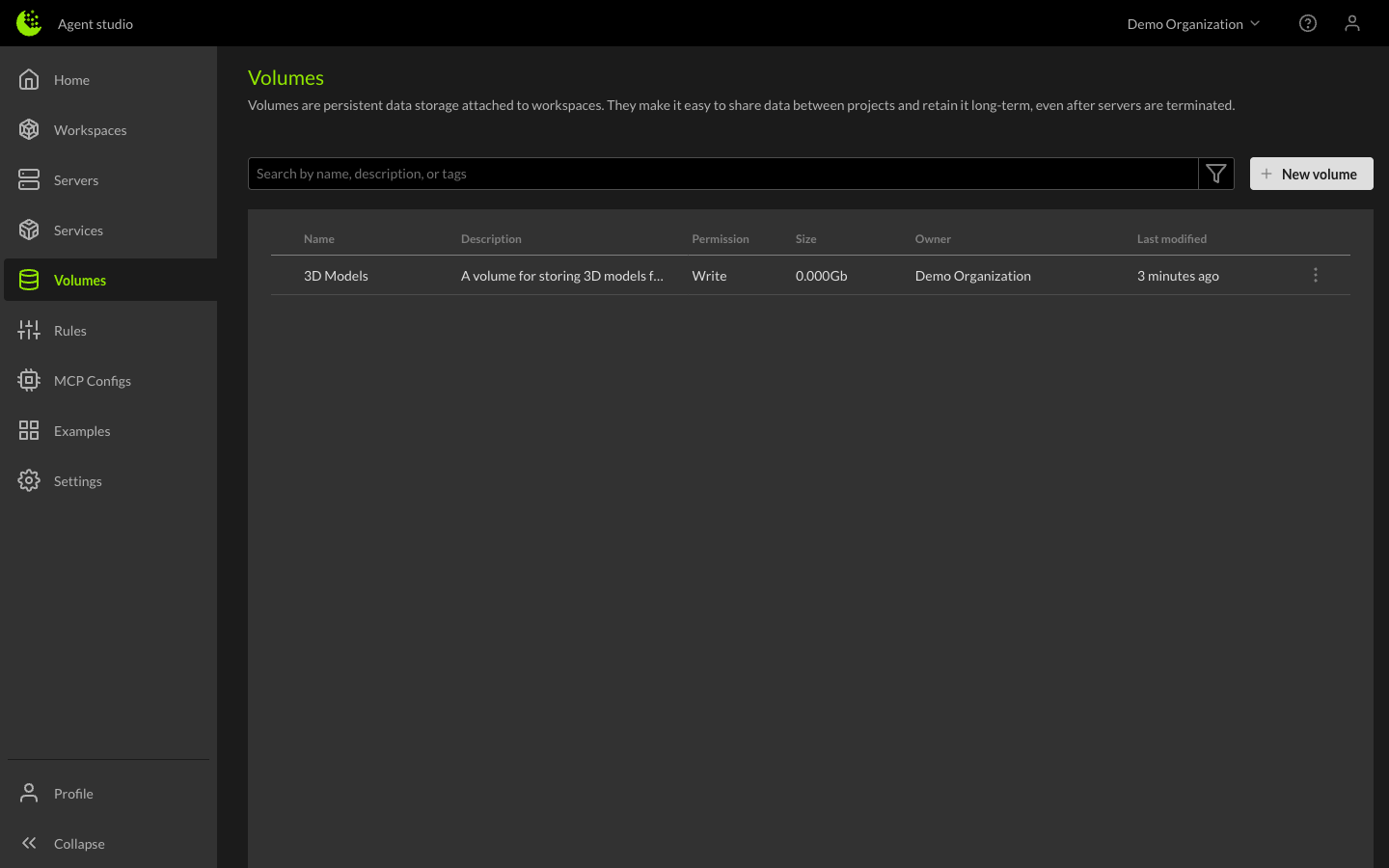
Browsing volumes
To view all volumes in your Organization, click Volumes in the left sidebar. The Volumes page shows a searchable list of all volumes with a filter option. From this page you can:
- Search for volumes by name, description, or tags
- Create new Organization volumes with the New volume button
- Click on a volume to open its detail view and browse its files
Volume types
There are two types of volumes:
- Workspace Volumes - Created automatically when a workspace is created. These are scoped to a single workspace and provide dedicated storage for that workspace's data. Workspace volumes cannot be deleted independently of the workspace.
- Organization Volumes - Created at the Organization level and can be shared across multiple workspaces. These are ideal for data that needs to be accessed by different teams or projects.
Creating a volume
Organization volumes can be created from the Volumes page by clicking the New volume button. When creating a volume, provide a name that describes its contents or purpose.
Workspace volumes are created automatically — every new workspace gets its own workspace volume.
Attaching volumes to a workspace
Volumes must be attached to a workspace before servers in that workspace can access them. You can attach volumes:
- During workspace creation - Select volumes in the Volumes field when creating a new workspace.
- From the workspace details - Click on a workspace, then use the Volumes section to manage attached volumes.
Once attached, the volume's contents are accessible from any server running in that workspace under the /workspace/volumes/ directory.
How to manage volume storage and attachments
From the workspace details, you can:
- Attach additional Organization volumes to the workspace
- Detach Organization volumes (workspace volumes cannot be detached)
- View the size of each attached volume
Detaching a volume does not delete its contents — the data remains available and can be re-attached to any workspace at any time.
Volume detail and file browser
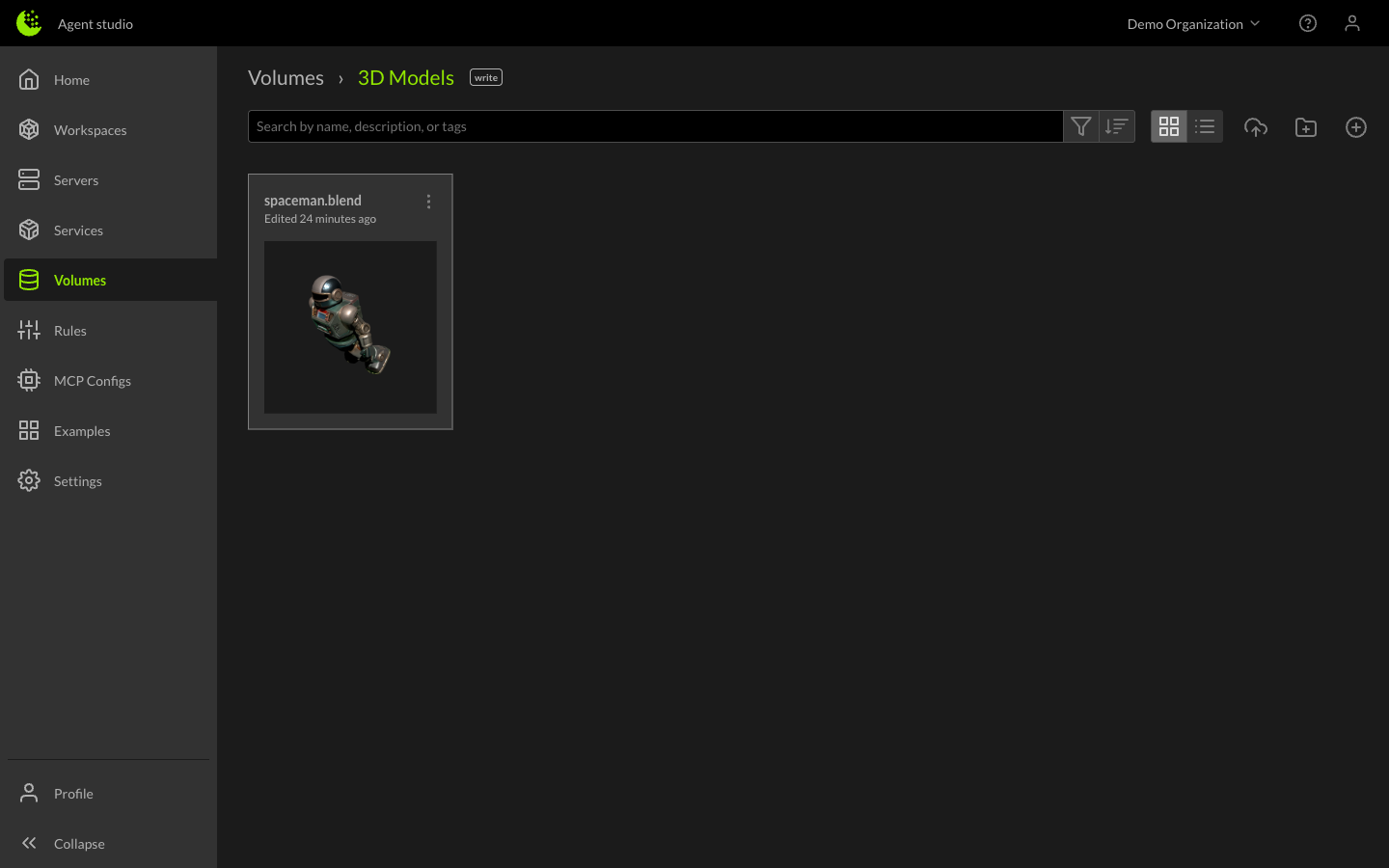
Click on any volume from the Volumes page to open its detail view. The volume detail page provides a file browser where you can:
- Navigate the volume's directory structure
- View file names, sizes, and modification dates
- Upload and download files
On a running server, the same files are accessible at /workspace/volumes/<volume-name>/.