

MCP Configs
MCP (Model Context Protocol) Configs allow you to connect additional MCP servers to your Agent. MCP servers provide tools and data sources that extend what your Agent can do — from accessing external APIs to integrating with third-party services.
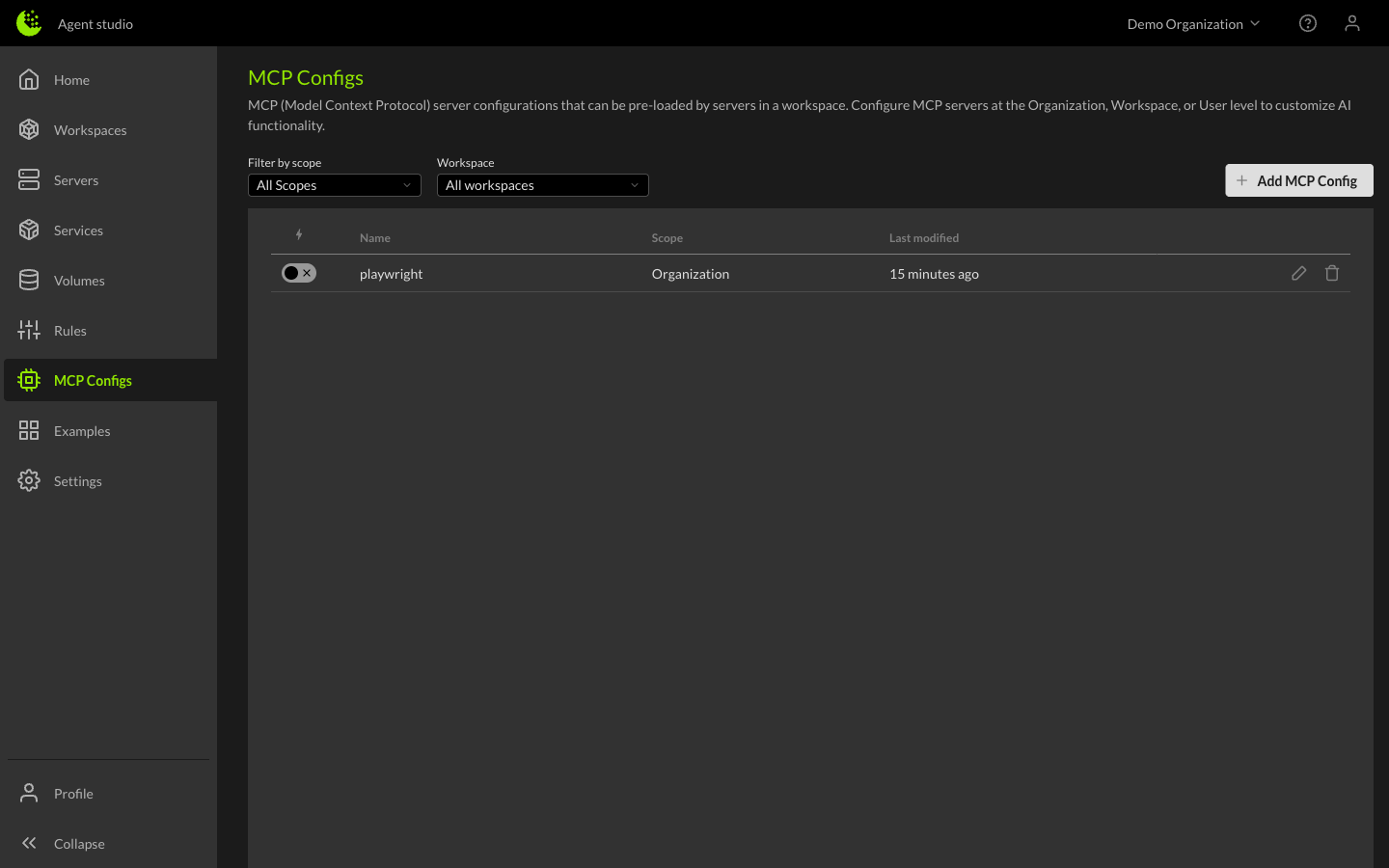
Scope levels
MCP Configs can be defined at three levels:
- Organization - Available to all workspaces in the Organization. Organization-level configs start disabled by default and must be explicitly enabled per workspace.
- User - Personal configurations that apply to your workspaces. User-level configs start enabled by default.
- Workspace - Specific to a single workspace. Workspace-level configs start enabled by default.
Managing MCP Configs
Browsing configs
Navigate to the MCP Configs page from the left sidebar to view all configured MCP servers. You can filter by scope (Organization, User, or Workspace) to find specific configurations.
Adding an MCP server
To add a new MCP server configuration:
- Click the Add button
- Select the scope (Organization, User, or Workspace)
- Provide a name and description for the server
- Enter the MCP server configuration in JSON format
- Save the configuration
How to edit and remove MCP server configurations
Click on any MCP config to edit its name, description, or configuration JSON. You can also delete configs you no longer need.
Workspace overrides
When working within a workspace, you may want to enable or disable inherited MCP configs from the Organization or User level without changing the original configuration.
From the workspace details, the MCP Configs section shows all applicable configs and allows you to:
- Enable Organization-level configs that are disabled by default
- Disable User-level or Organization-level configs for this specific workspace
- Add workspace-specific MCP configs
These overrides only affect the current workspace and do not change the original configuration at the Organization or User level.
To learn how to build your own MCP server, see MCP Servers developer guide.