

Secrets
Secrets allow you to securely store sensitive information like API keys, tokens, and credentials. When a server starts, secrets are injected as environment variables, making them available to your tools and services without exposing them in code or configuration files.
Secret scopes
Secrets are managed at two levels:
- Organization Secrets - Set by administrators and included on all servers across the Organization. These are ideal for shared API keys or credentials that multiple workspaces need access to. Organization secrets are read-only from the workspace view.
- Workspace Secrets - Specific to a single workspace. Only the workspace owner can create, edit, and delete workspace secrets. These are useful for project-specific credentials or keys that should not be shared across the Organization.
Managing secrets
Viewing secrets
From the workspace details, the Secrets section shows all secrets available to servers in that workspace. Each secret displays its name and scope (Organization or Workspace). Secret values are hidden for security.
Creating a workspace secret
- Open the workspace details
- Navigate to the Secrets section
- Click Add Secret
- Enter a name for the secret (this becomes the environment variable name)
- Enter the value
- Save
The secret will be available as an environment variable on the next server start.
Creating an Organization secret
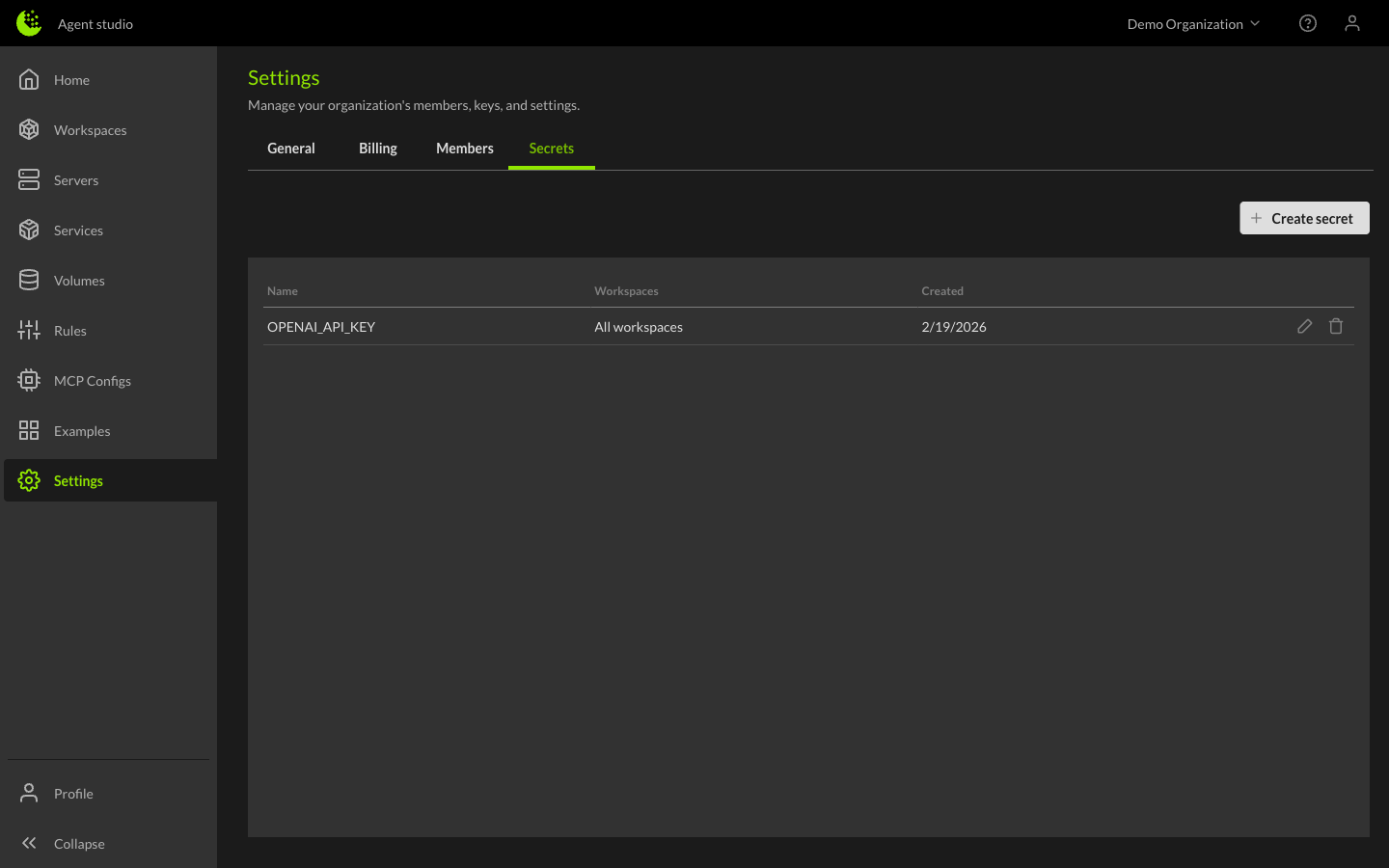
Organization-level secrets are managed from the Settings page:
- Click Settings in the left sidebar
- Select the Secrets tab
- Click Create secret
- Enter a name for the secret (this becomes the environment variable name)
- Enter the value
- Optionally select which workspaces should have access to the secret
- Save
Organization secrets appear in the Secrets tab table showing the secret name, associated workspaces, and creation date. They are available on all servers across the Organization (or scoped workspaces, if specified).
How to edit and delete secrets
Workspace secrets can be edited or deleted by the workspace owner from the workspace details. Organization secrets can only be managed by Organization administrators from the Settings > Secrets tab.
Using secrets in your environment
Once set, secrets are available as standard environment variables on the server. For example, if you create a secret named OPENAI_API_KEY, it will be accessible in your code as the OPENAI_API_KEY environment variable.
⚠ Warning
Restarting a server may be required for new or updated secrets to take effect.