

Creating and Using Datasets
Datasets are the output from the Rendered.ai platform. Most of what you have learned so far has been focused on configuring or running simulations to produce datasets.
Jobs View
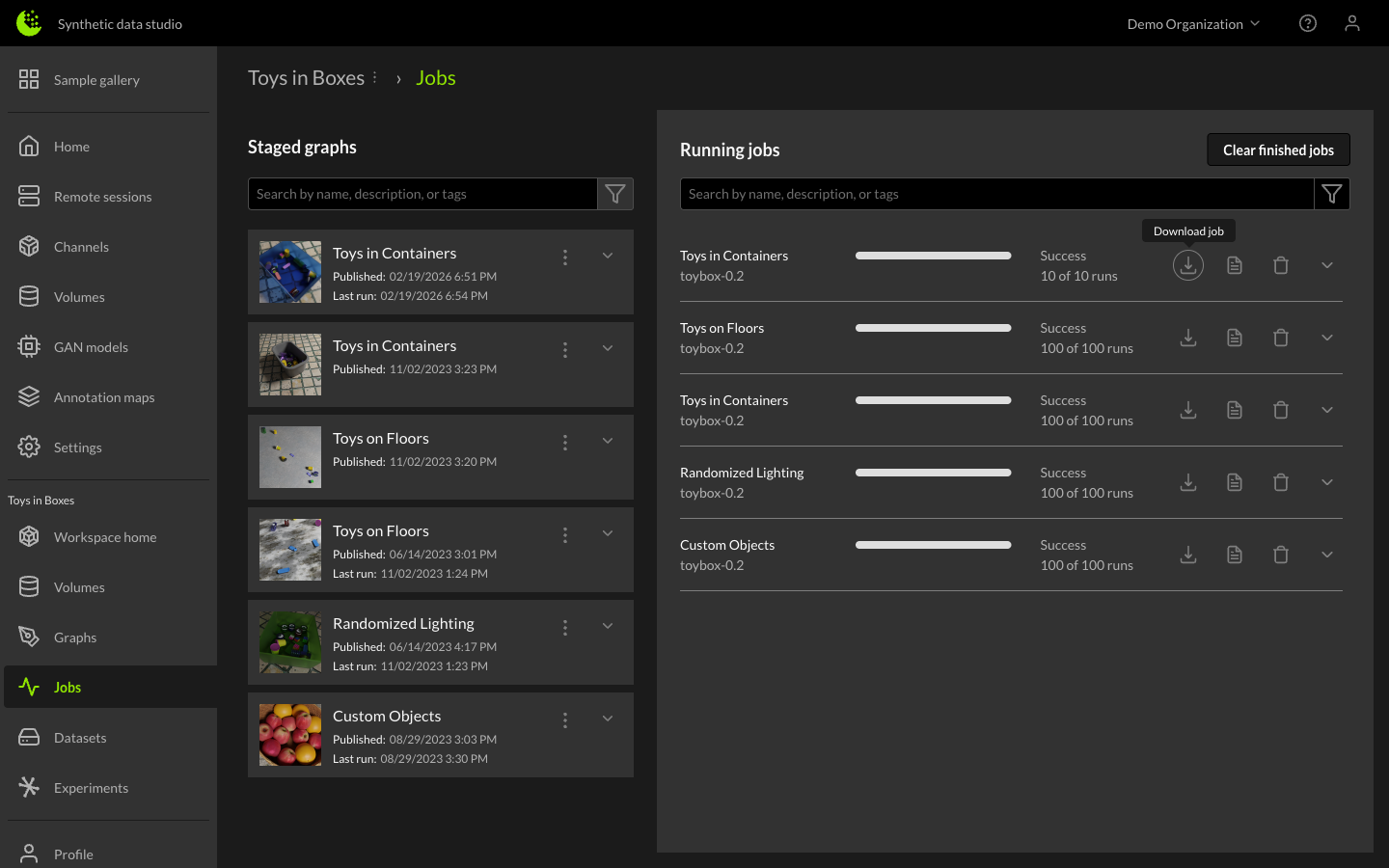
The Jobs page is split into two sections: Staged Graphs on the left and Running Jobs on the right.
Staged Graphs
After staging a graph, the staged graph entry appears on the Jobs page. By selecting the dropdown arrow next to a staged graph entry, the run configuration is revealed.
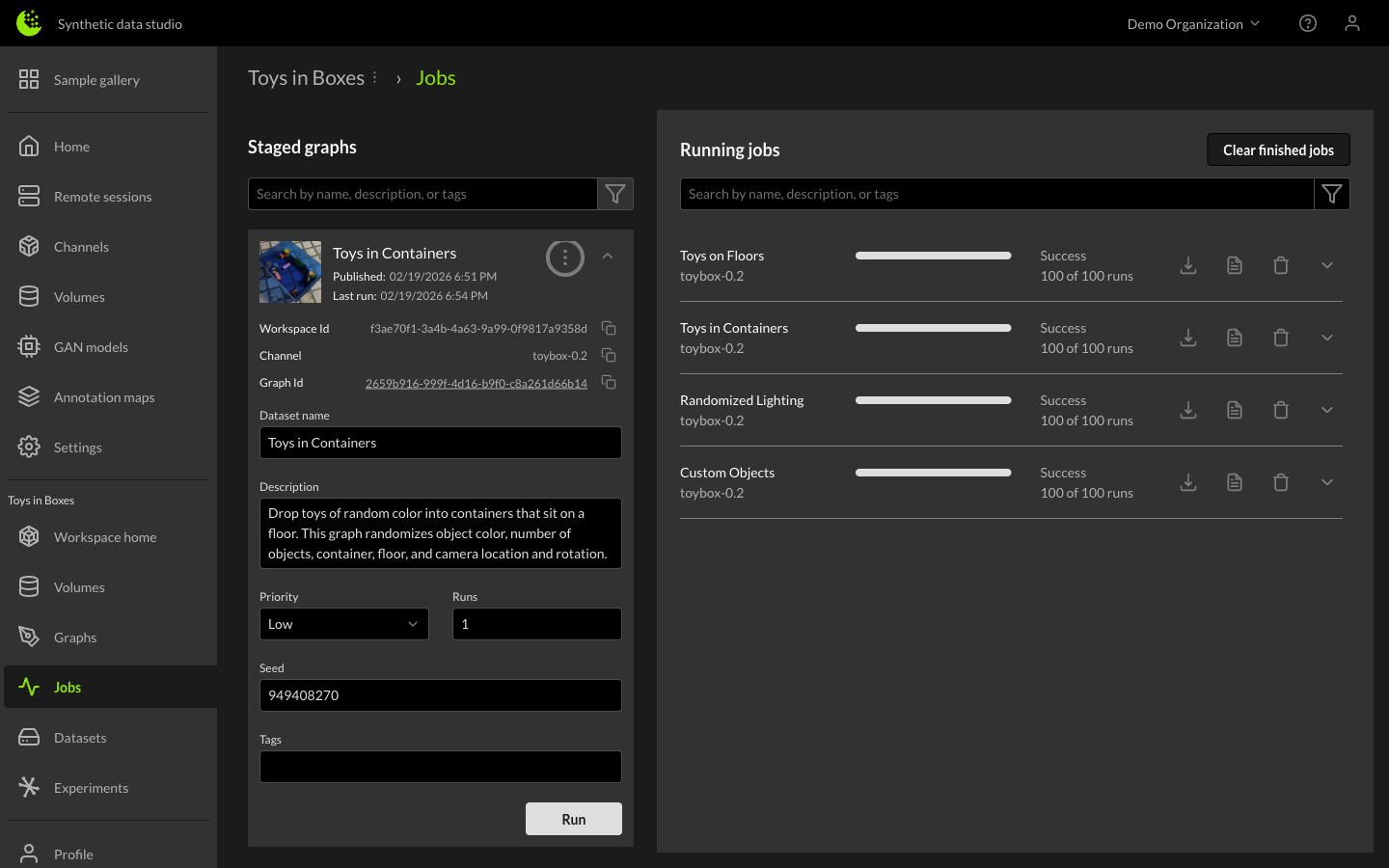
Parameters for creating a dataset:
| Parameter | Description |
|---|---|
| Dataset name | The name for the dataset, prepopulated with the Staged Graph name. |
| Description | A description for the dataset (optional). |
| Priority | Low, Medium or High. Used to determine when a dataset job is run for an organization. |
| Runs | The number of simulation runs used to generate the synthetic dataset. This can equate to the total number of rendered images if the channel has a single sensor. |
| Seed | A seed used to feed the random generator for the channel. |
When you are ready to submit the job, click the Run button.
Submitting Dataset Jobs
Once you have finished setting the parameters for the dataset job, pressing the Run button queues up the job. The new job will appear in the Running Jobs section on the right side of the Jobs page.
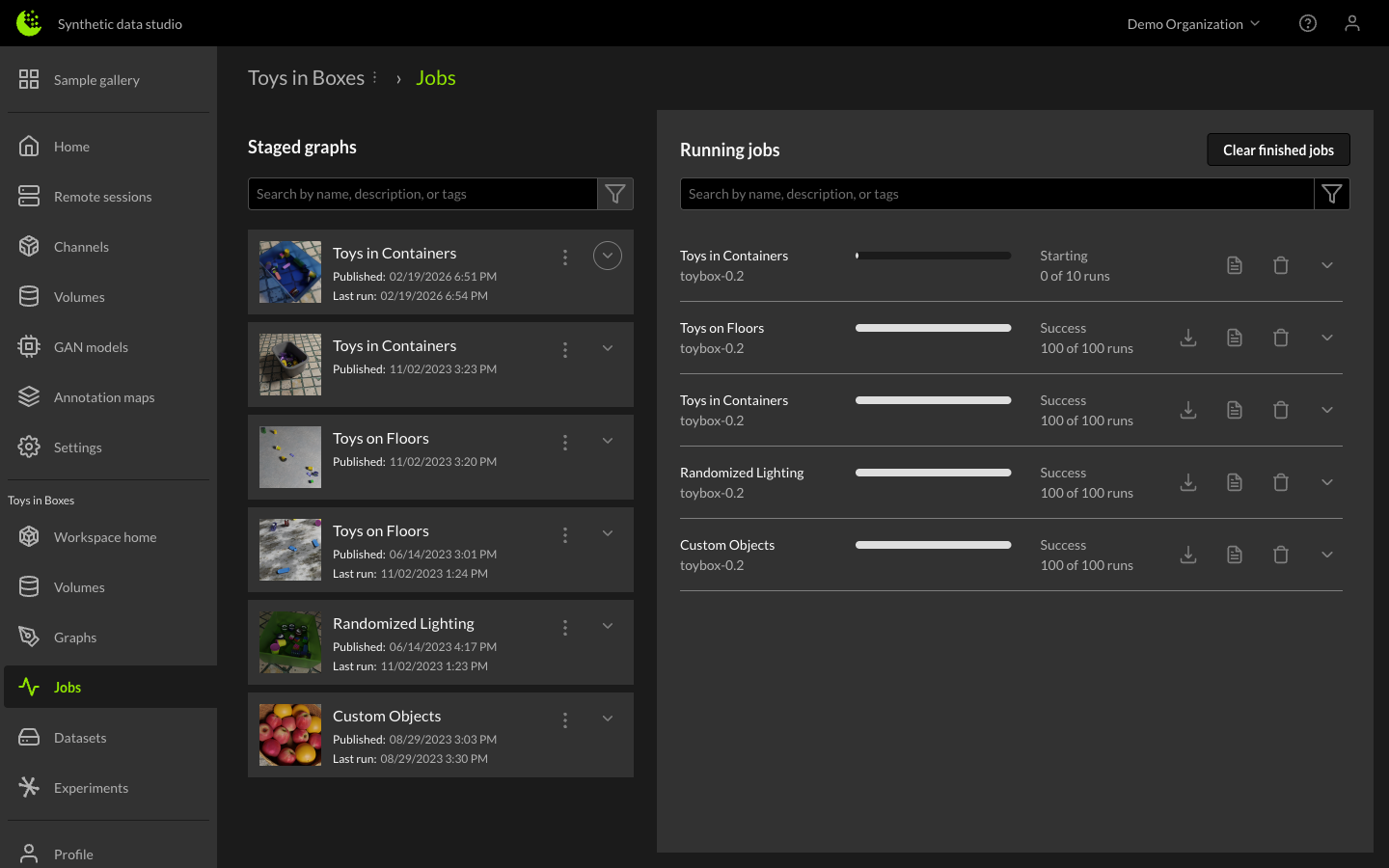
Job status descriptions:
| Status | Description |
|---|---|
| Queued | The job is ready to be executed, usually means it is waiting on compute to be available. |
| Running | Compute is available and the simulations are currently running. |
| Post-processing | All simulations are complete, generating thumbnails, creating a compressed dataset and updating databases. |
| Success | The dataset has been created successfully. |
| Failed | The job has failed to create a dataset. This can happen for a number of reasons: configuration issues, channel issues or infrastructure / compute issues. |
Jobs that are in the running state and have completed at least one simulation run can be Stopped, its status will move to Post-processing meaning that the dataset will be created with just the completed runs. Jobs in Queued, Running, Post-processing state can be deleted. Jobs in Complete or Failed state can be cleared so they no longer show up in the Jobs Queue.
Stopping or Cancelling a Dataset Job
The stop icon in the job window will stop the job. A stopped job can still create a synthetic dataset, or be deleted using the trash icon.
The trash icon in the job window will cancel and remove the job. It can also be used to clear completed or failed jobs from the Job Queue.
Dataset Job More Info and Logs
Users can get more information about the status of a job by expanding it using the chevron icon on the right side of the job entry.
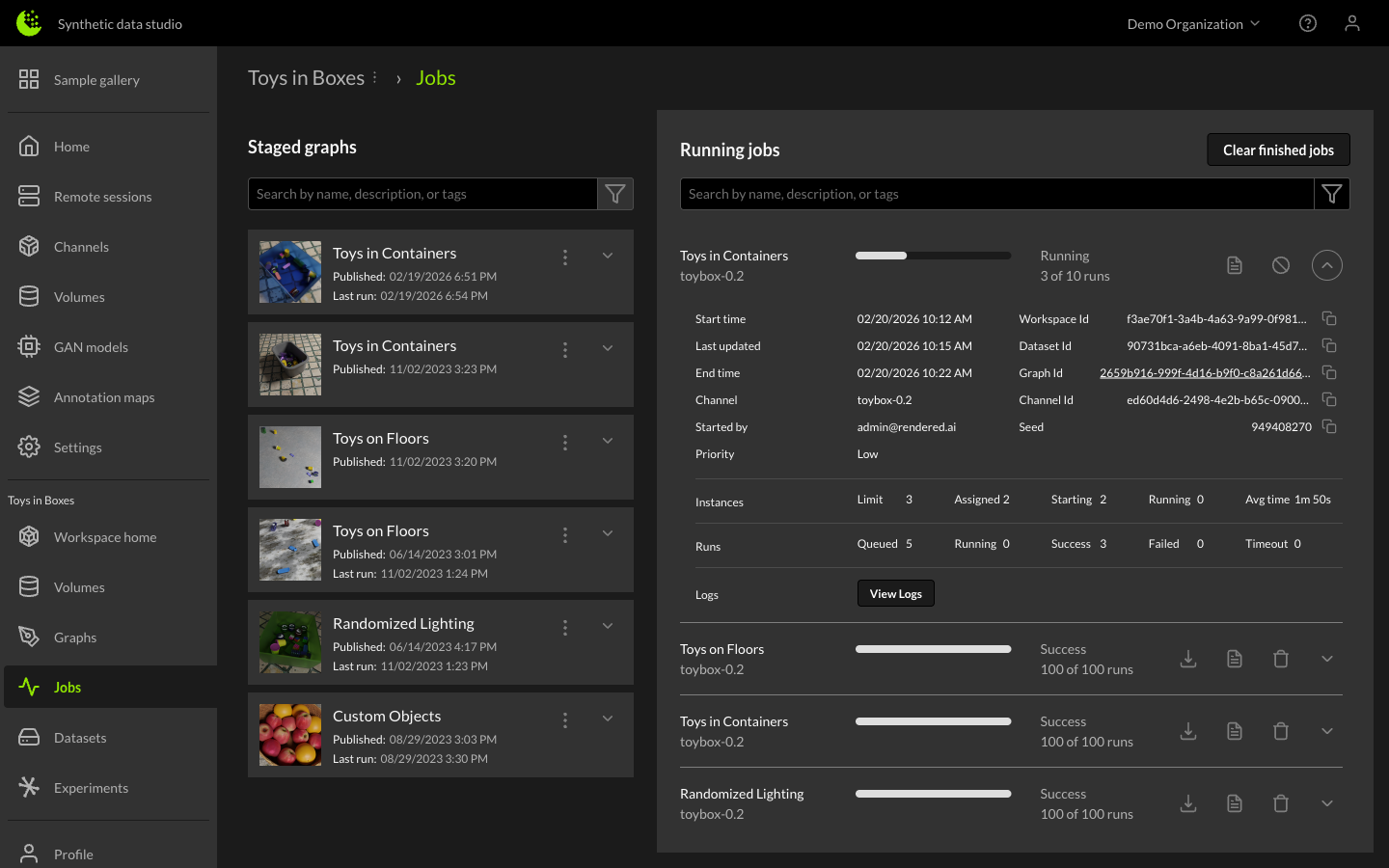
The expanded view shares details about the Graph and Channel used to create the dataset, the User who kicked off the job and estimates around completion time. It also shows the state of both Runs and Instances used to complete the job.
Clicking the View Logs button will bring up the Logs Manager. From here we can view the logs for runs of a Dataset Job that are either running or have already completed or failed.
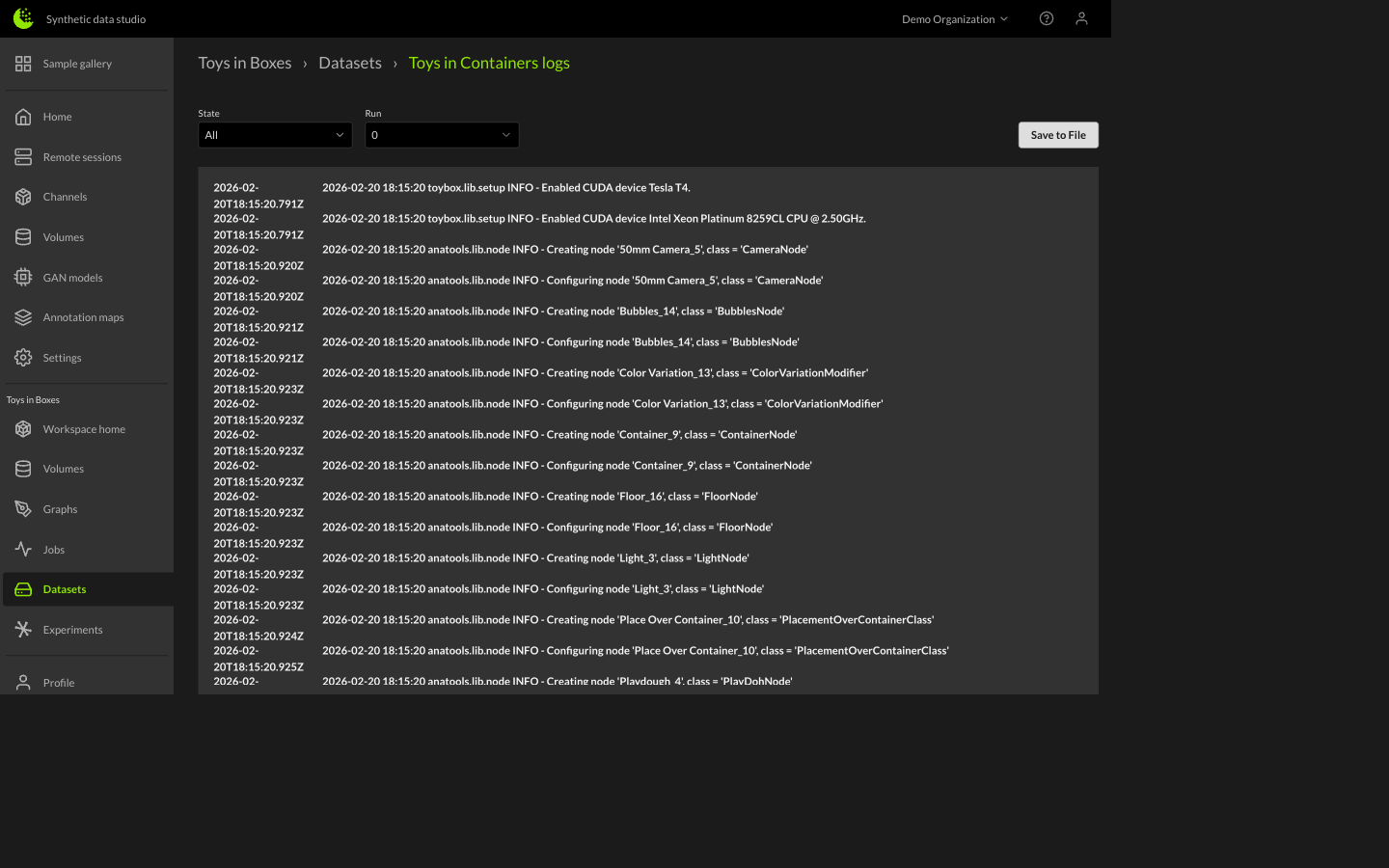
We can specify a Run State or Run Number to filter by. These dataset logs can help us identify issues with failed runs and either fix the graph or channel code base. The logs can also be saved in a text file format for easier viewing or reporting.
Dataset Download
After a Dataset Job has completed on the Jobs page, a dataset will be available to download via the Download button on the Jobs page.
Dataset Library
The Dataset will also appear in the Datasets Library page. By navigating to the Dataset tab and selecting the Dataset, you can learn more about it on the right-hand side.
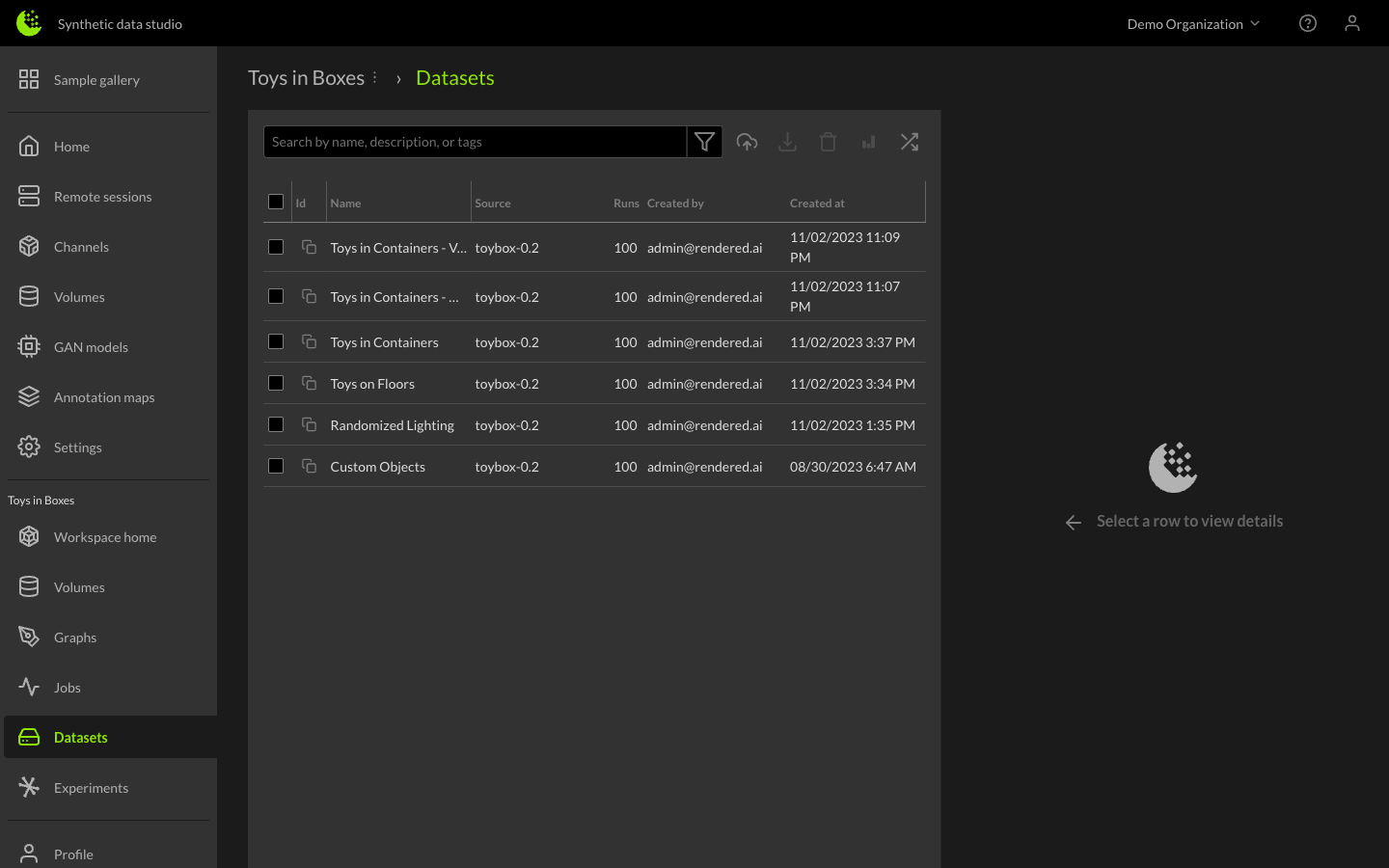
By clicking the checkbox next to the Dataset name, you can download or delete the dataset from the Dataset Library.
Information about each dataset name and description, unique identifiers and parameters for generating the dataset are shown on the right.
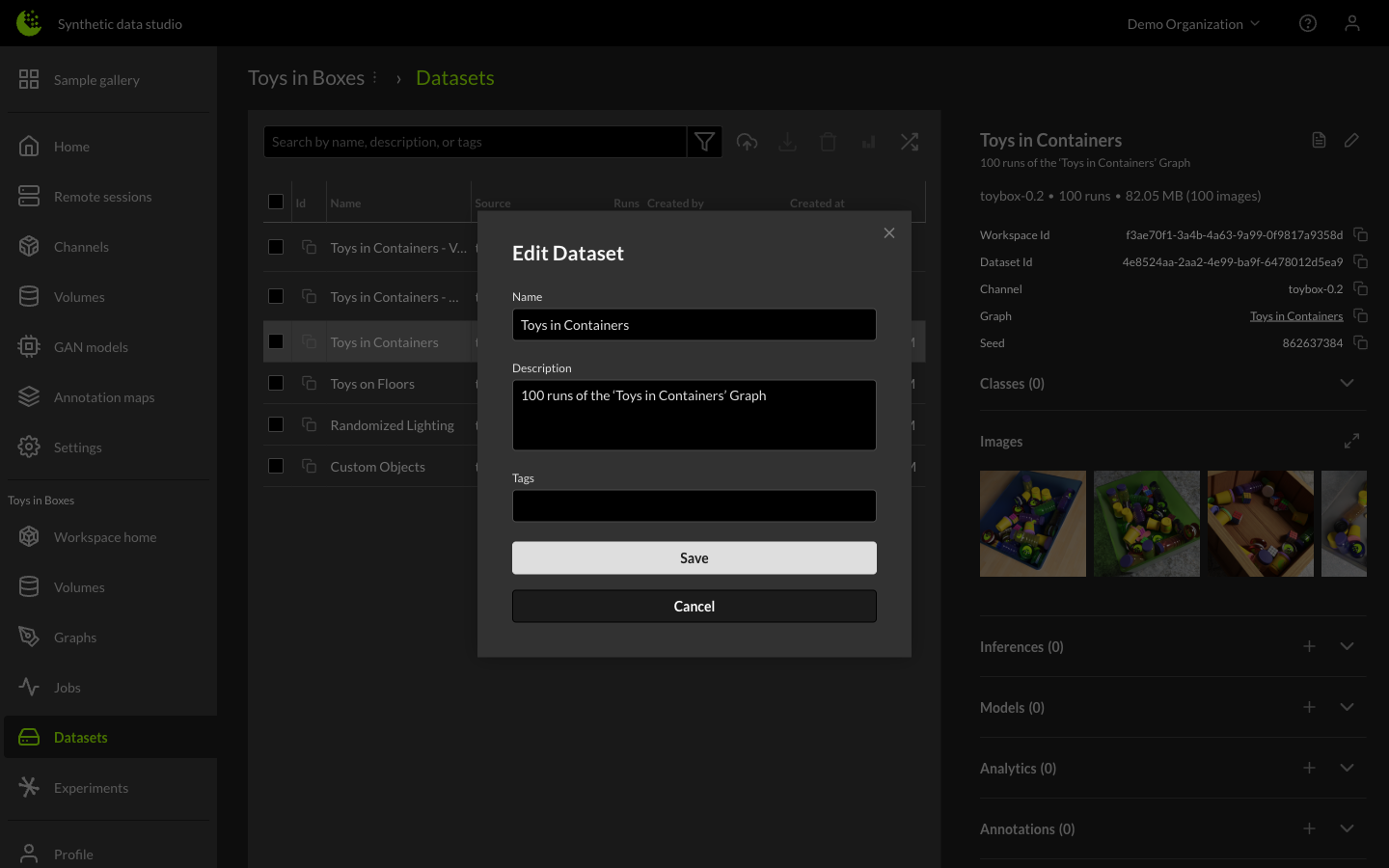
From here, you can also edit the name and description of a dataset using the pencil icon.
Additional Dataset Services
The platform has a number of additional services to help you learn more about, compare or adapt the synthetic dataset. The following tutorials offer further information: