Inpaint Service
The Inpaint service takes an annotated image, erases the annotated features from the image, and generates a new image or a Blender file with placement areas where those annotated features were originally located. The generated Blender file can be used as a background image in channels that support placement of objects on 2D backgrounds such as SATRGB.
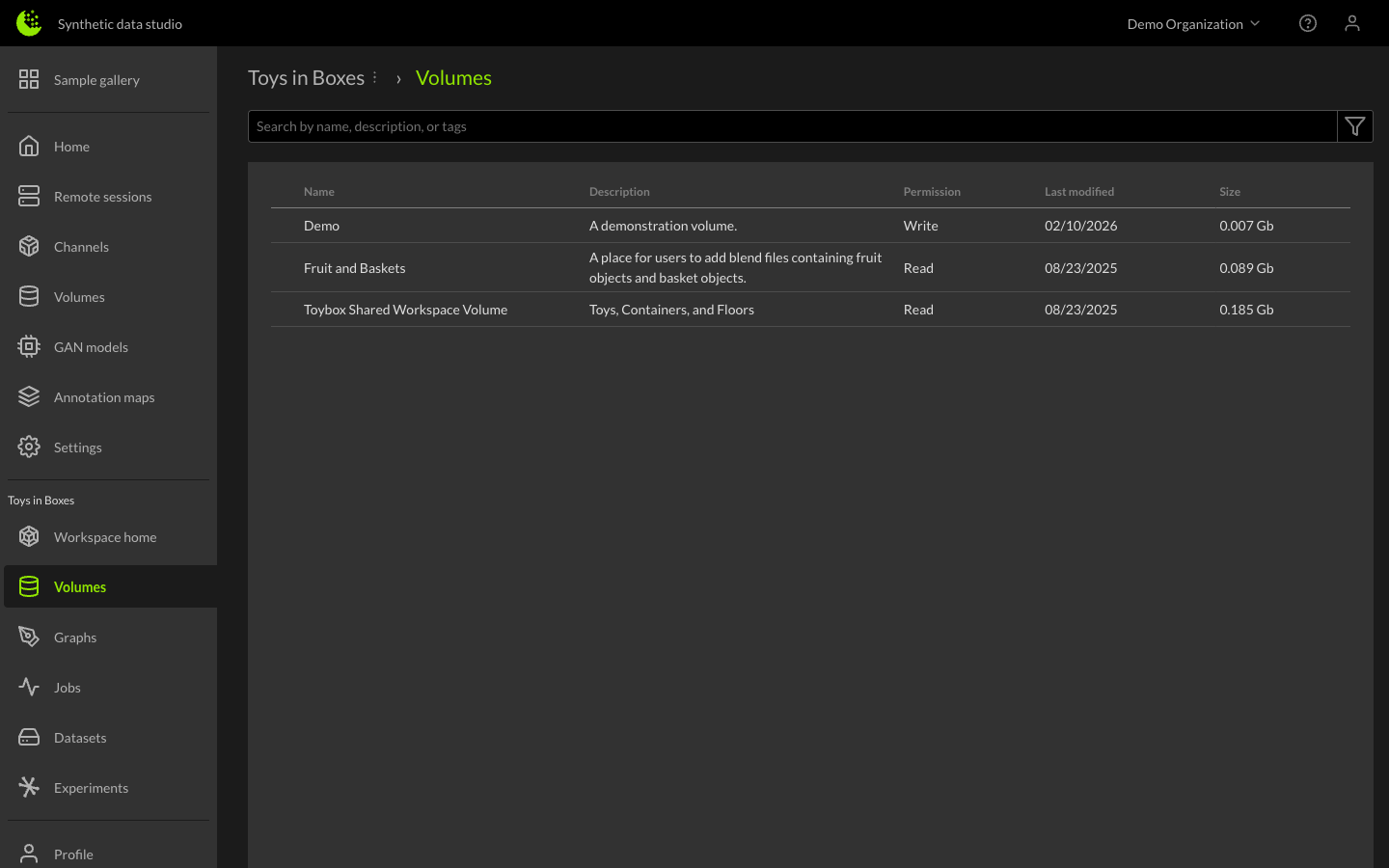
The Inpaint service is accessed from the Volumes page of the workspace. Navigate to the Volumes tab in the left sidebar to view the list of volumes.
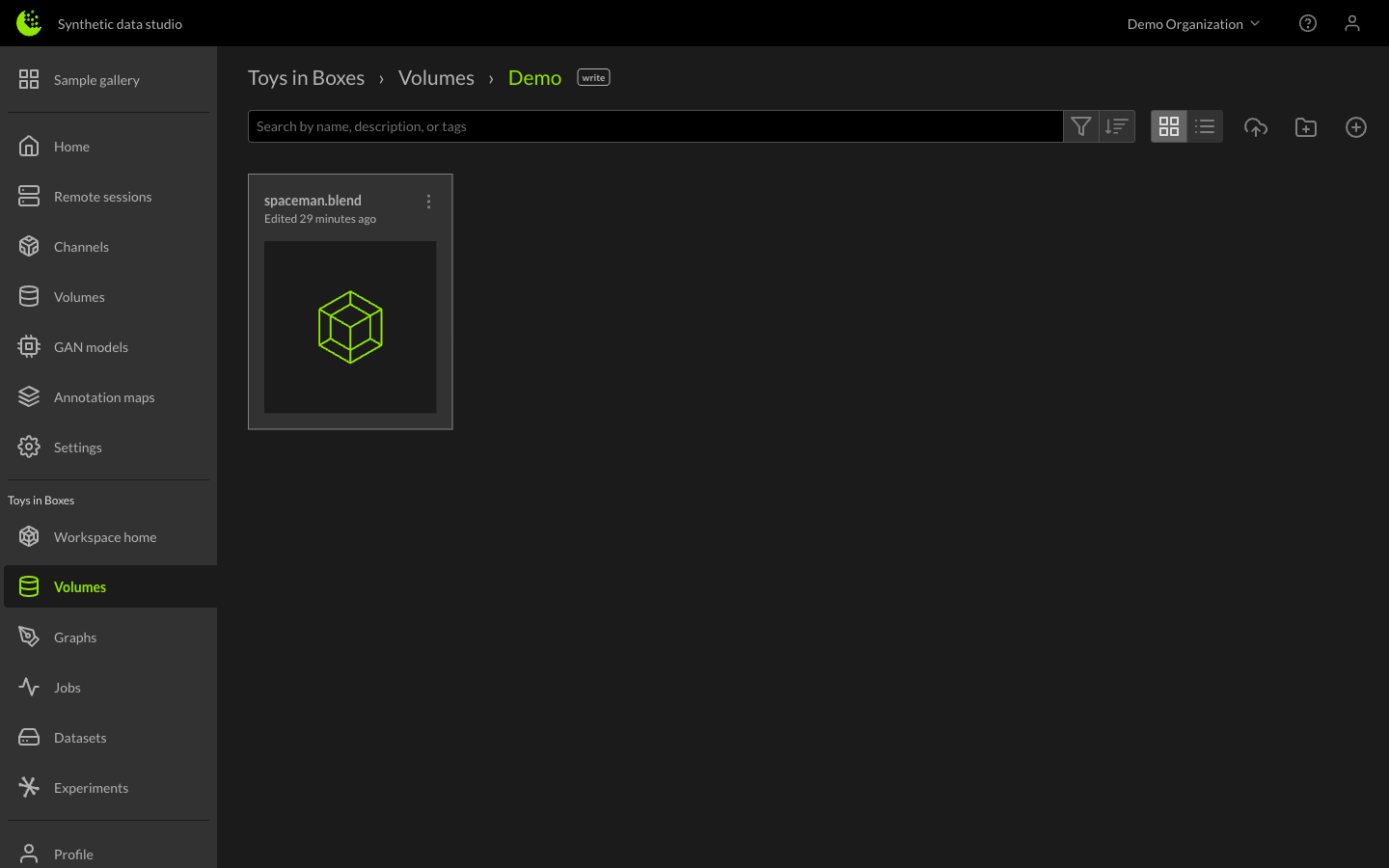
The source backgrounds need to be uploaded to a volume. Click on a volume from the volume list. A page showing the volume content will be displayed.
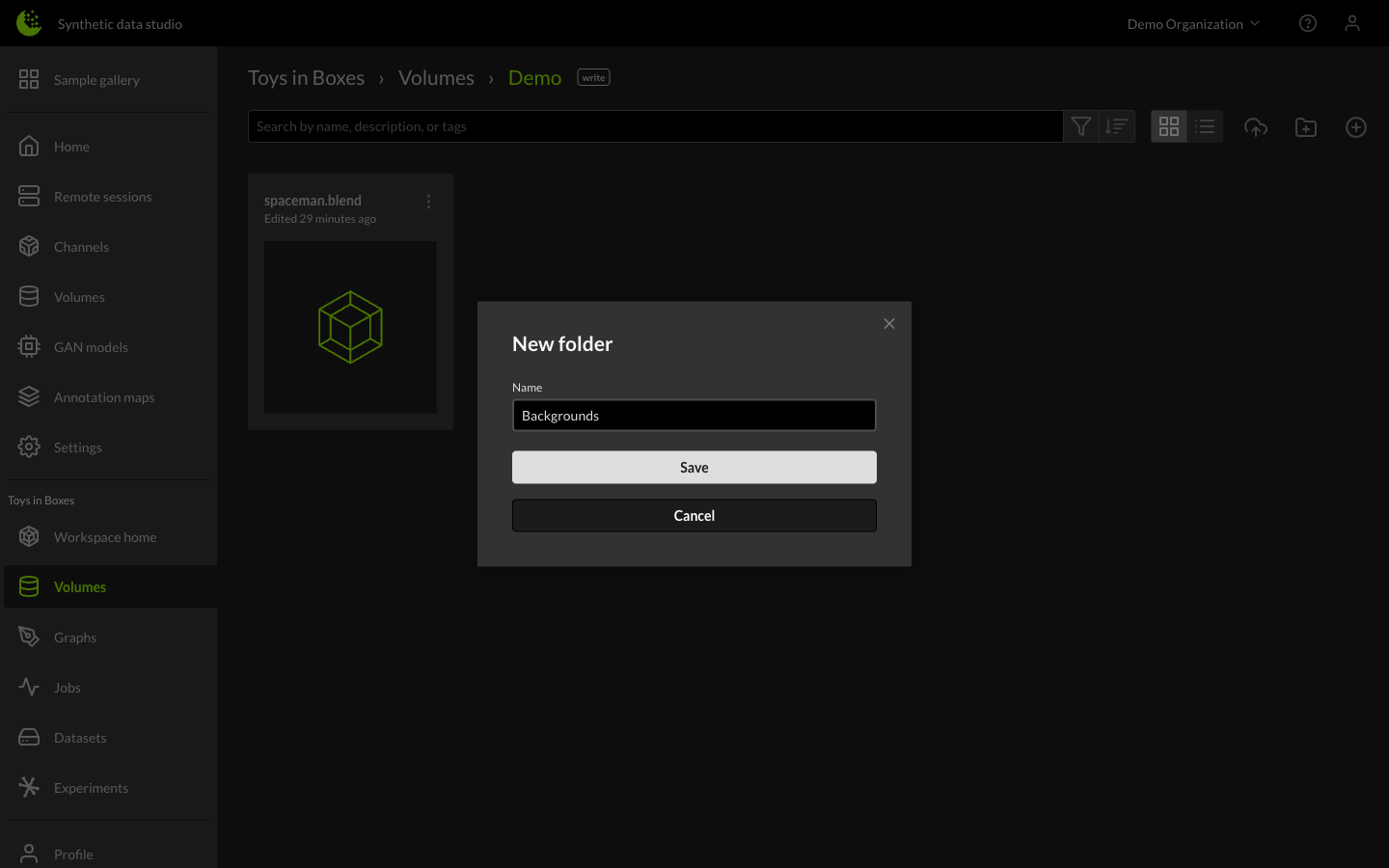
The Inpaint service processes all images in a directory so it is a good idea to create a new folder to hold the source backgrounds and their annotation files or image masks. Click on the New folder button and give the folder an appropriate name.
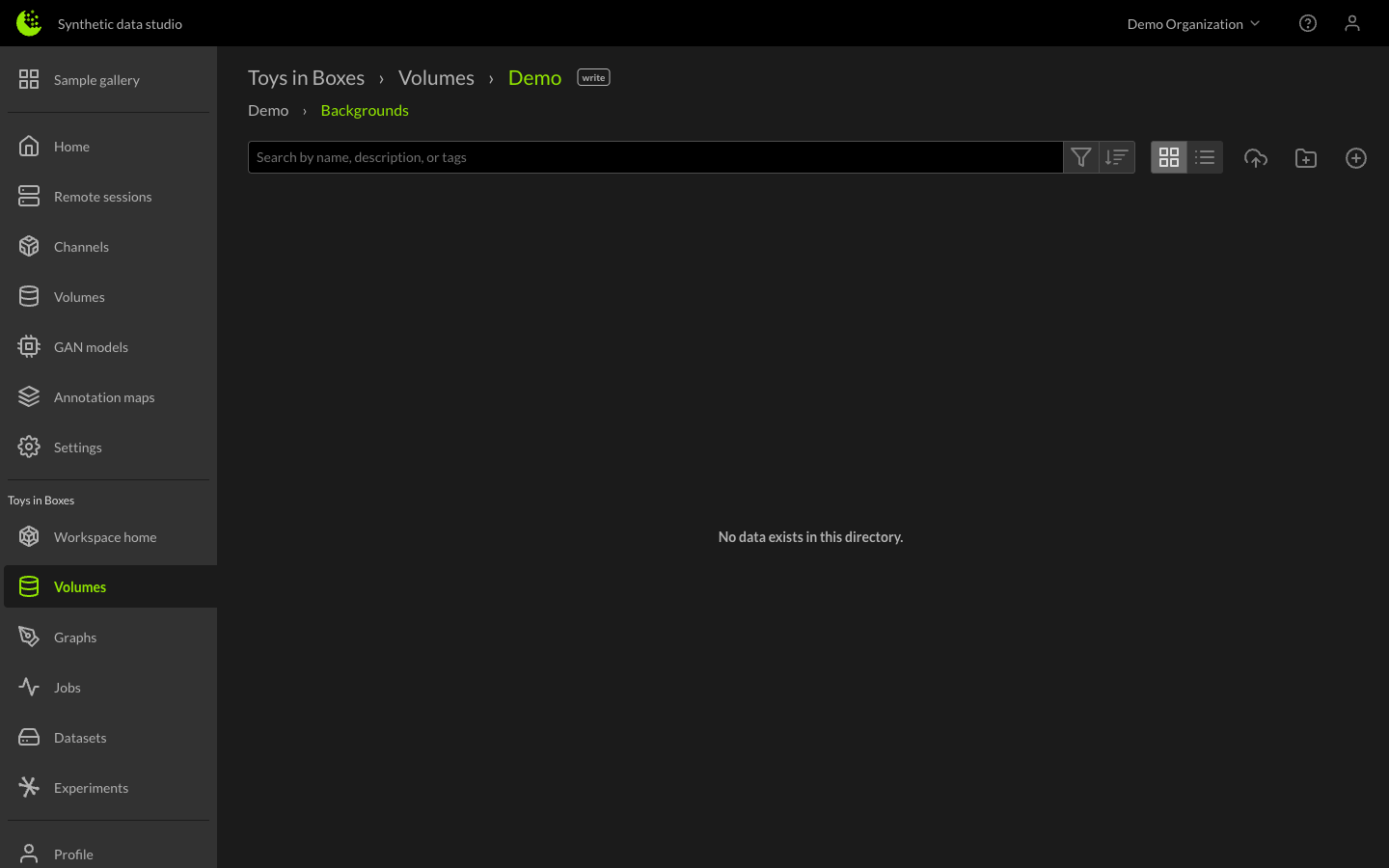
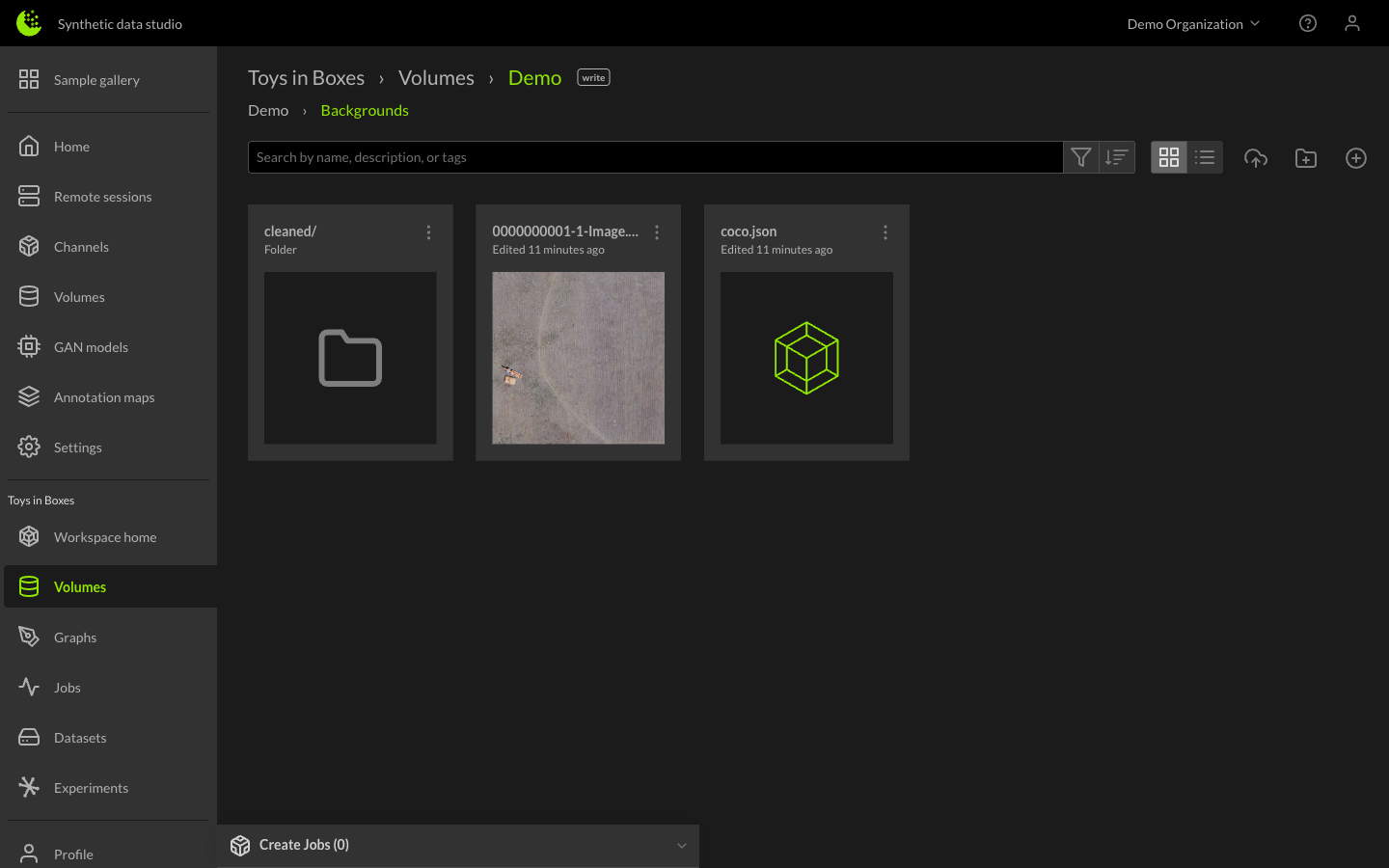
Click on the Backgrounds working folder, then click the Upload file button. Add the background image along with the annotation files or mask images. You can drag and drop files into the upload area or click to browse. The background image must be in TIFF, PNG, JPG, or JPEG format. Annotation files should be in one of the following formats: COCO, KITTI, Pascal, YOLO, or GeoJSON. Mask images must have a .mask.png, .mask.jpg, .mask.jpeg, or .mask.tiff extension.
Annotation files and mask images are not both required -- only one is needed for all background images.
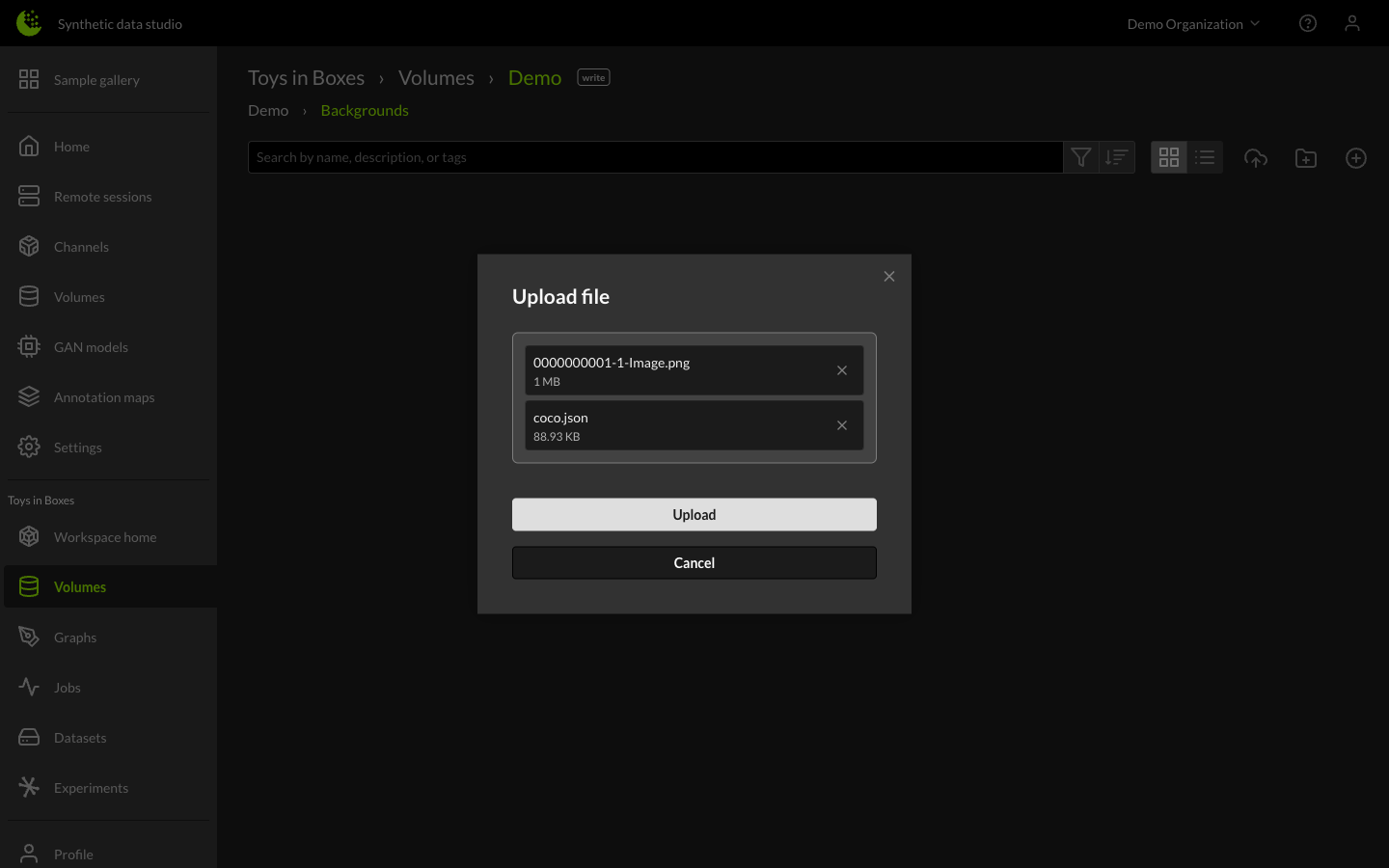
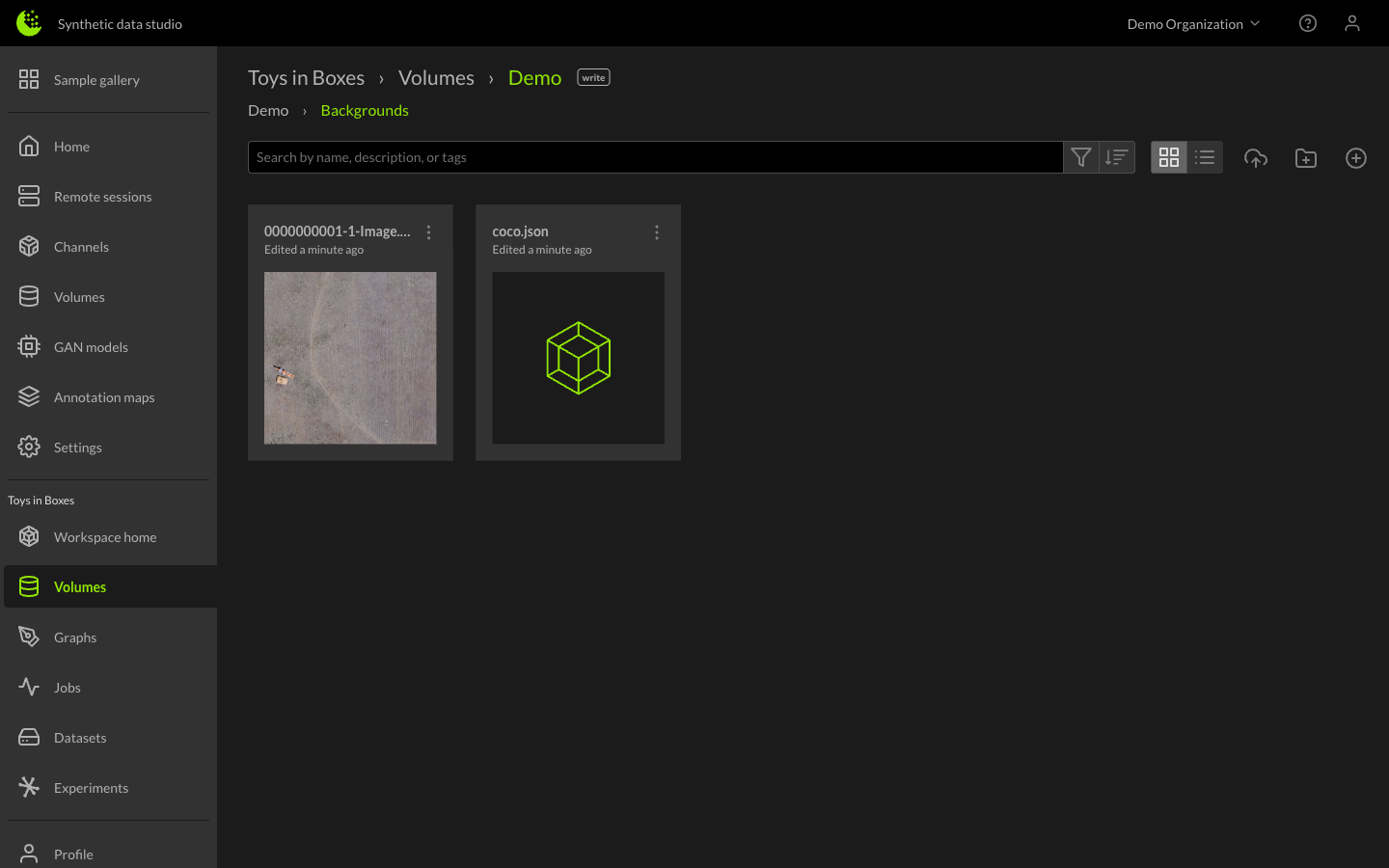
Click the Upload button to upload the files.
To run the Inpaint service, click on the Create button in the toolbar. This brings up the Create dialog.
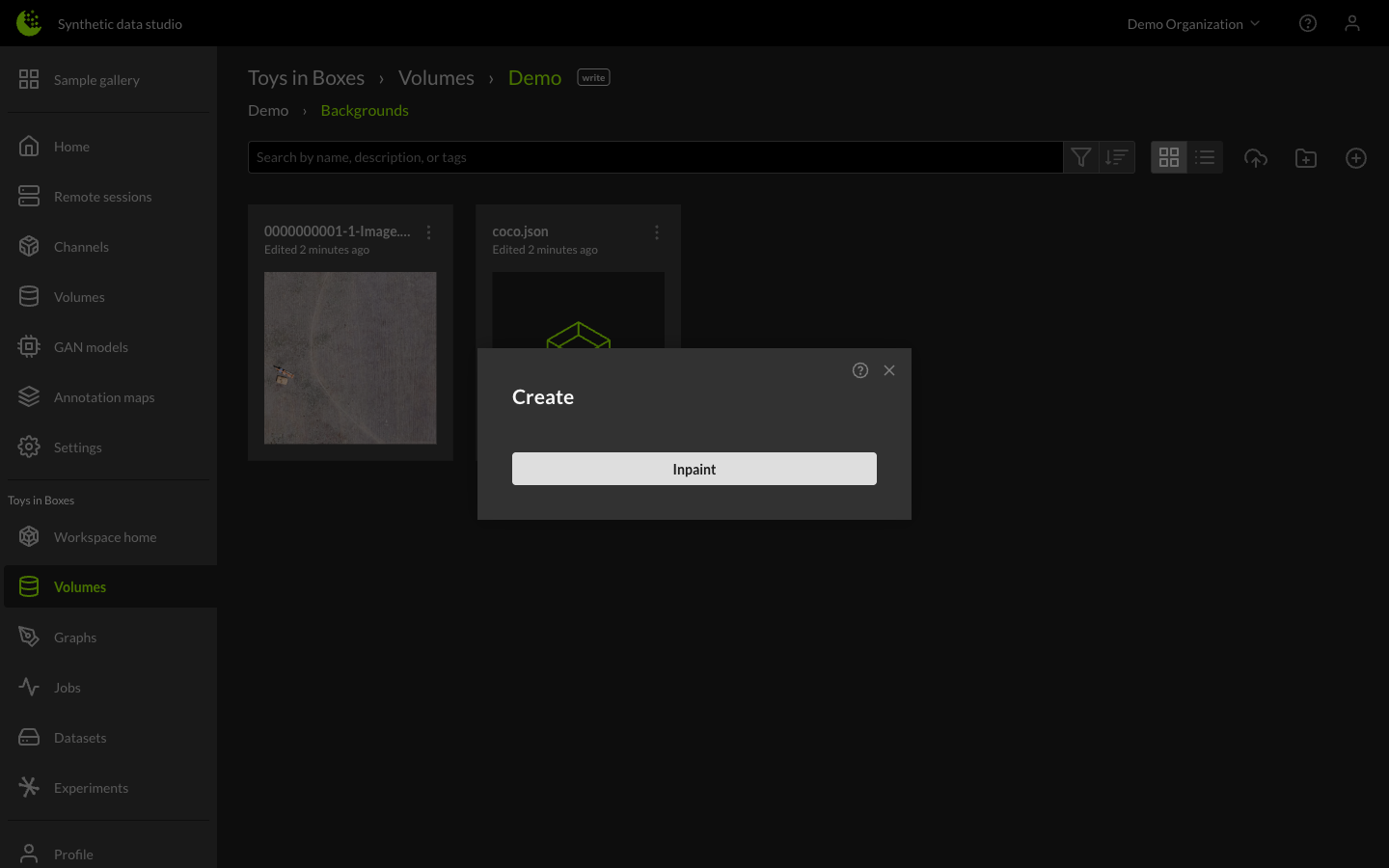
Click on the Inpaint button to bring up the Inpaint configuration dialog.
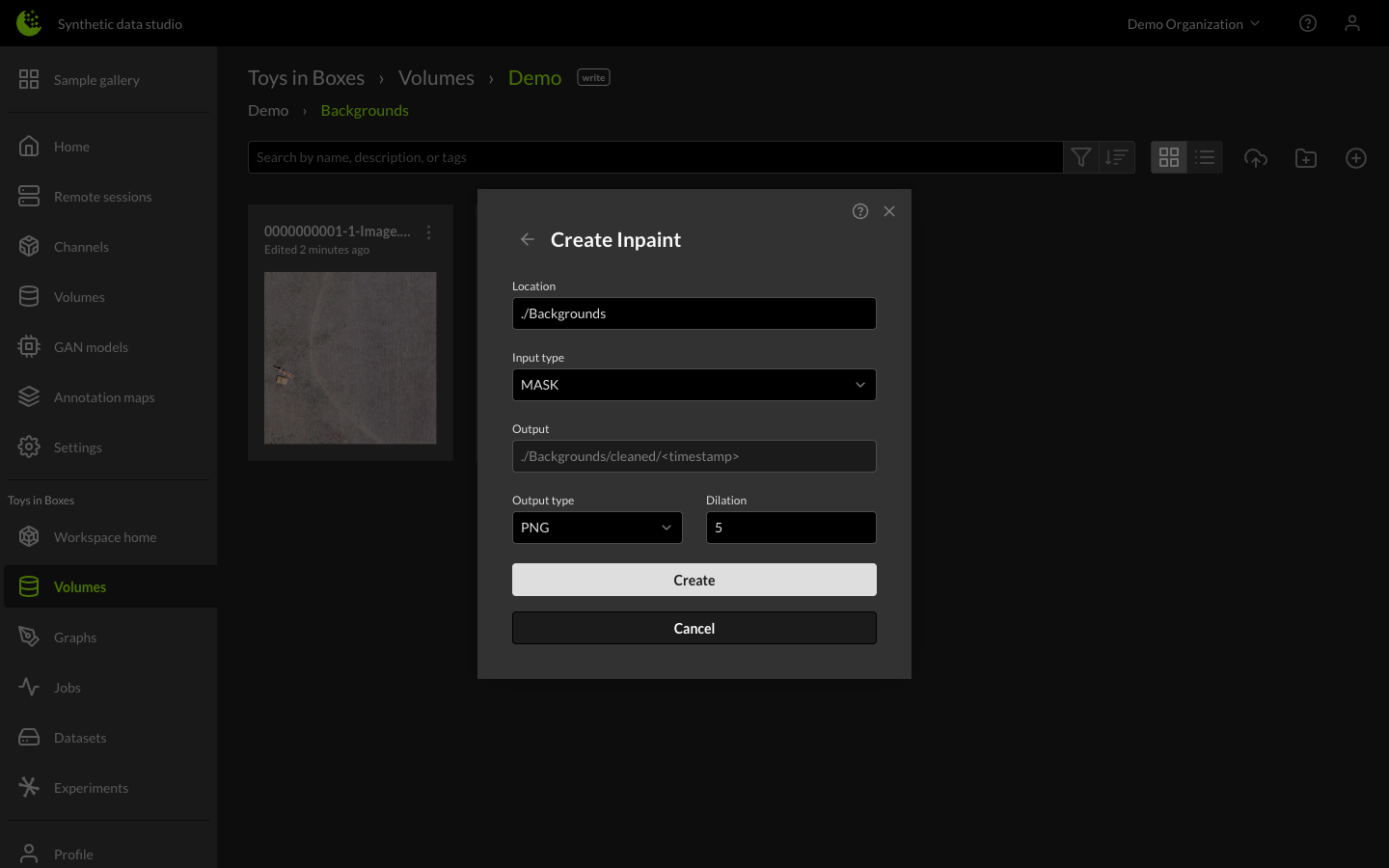
By default, the input location is set to the current directory, with the input type as MASK. The output will be stored in a subdirectory named "cleaned", followed by a timestamp. The output format is PNG, and the dilation value is set to 5. Dilation controls how much the mask area expands before inpainting the image.
Other available input types include GEOJSON, COCO, KITTI, PASCAL, and YOLO -- choose the option that best fits your needs.
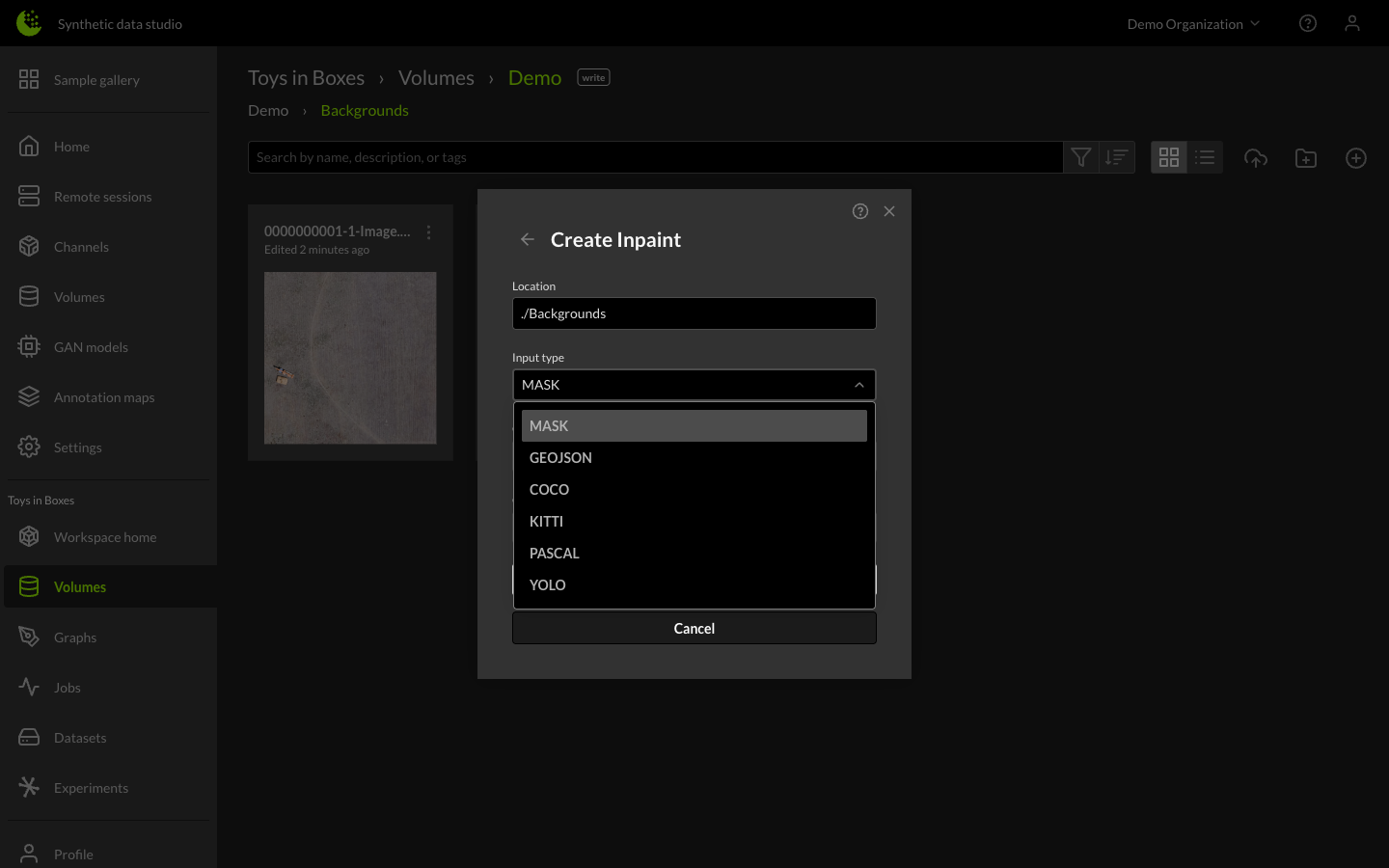
Other available output types include PNG, JPG, and SATRGB Background -- choose the option that best fits your needs.
Click the Create button to accept the settings and start the Inpaint service. A "Create Jobs" window will appear in the lower left. Click on the down arrow to see progress of the job.
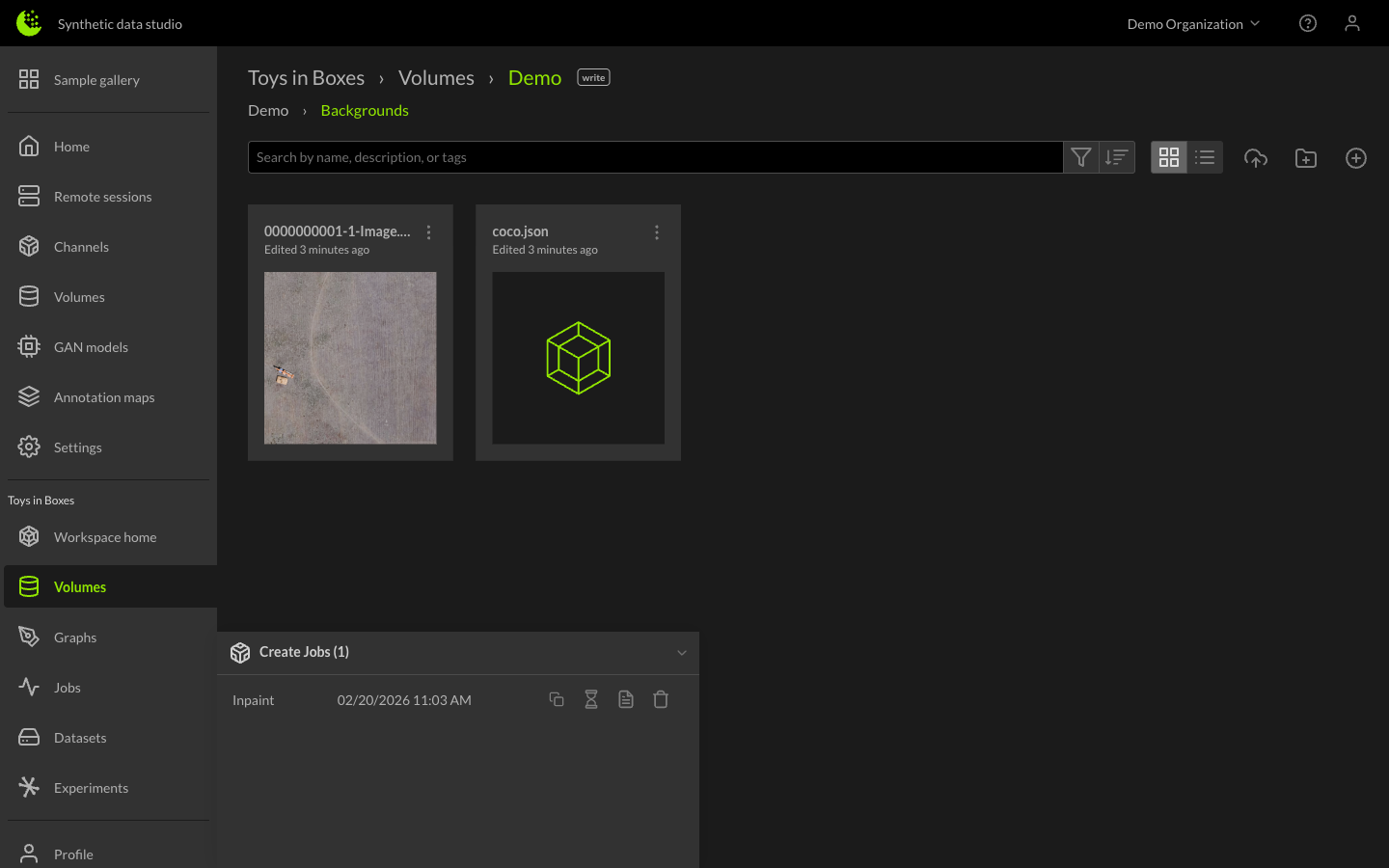
When the job is complete, the hourglass icon will switch to a navigation icon. Click on that icon and you will be taken to the output directory. There will be cleaned backgrounds for every background image that you processed.
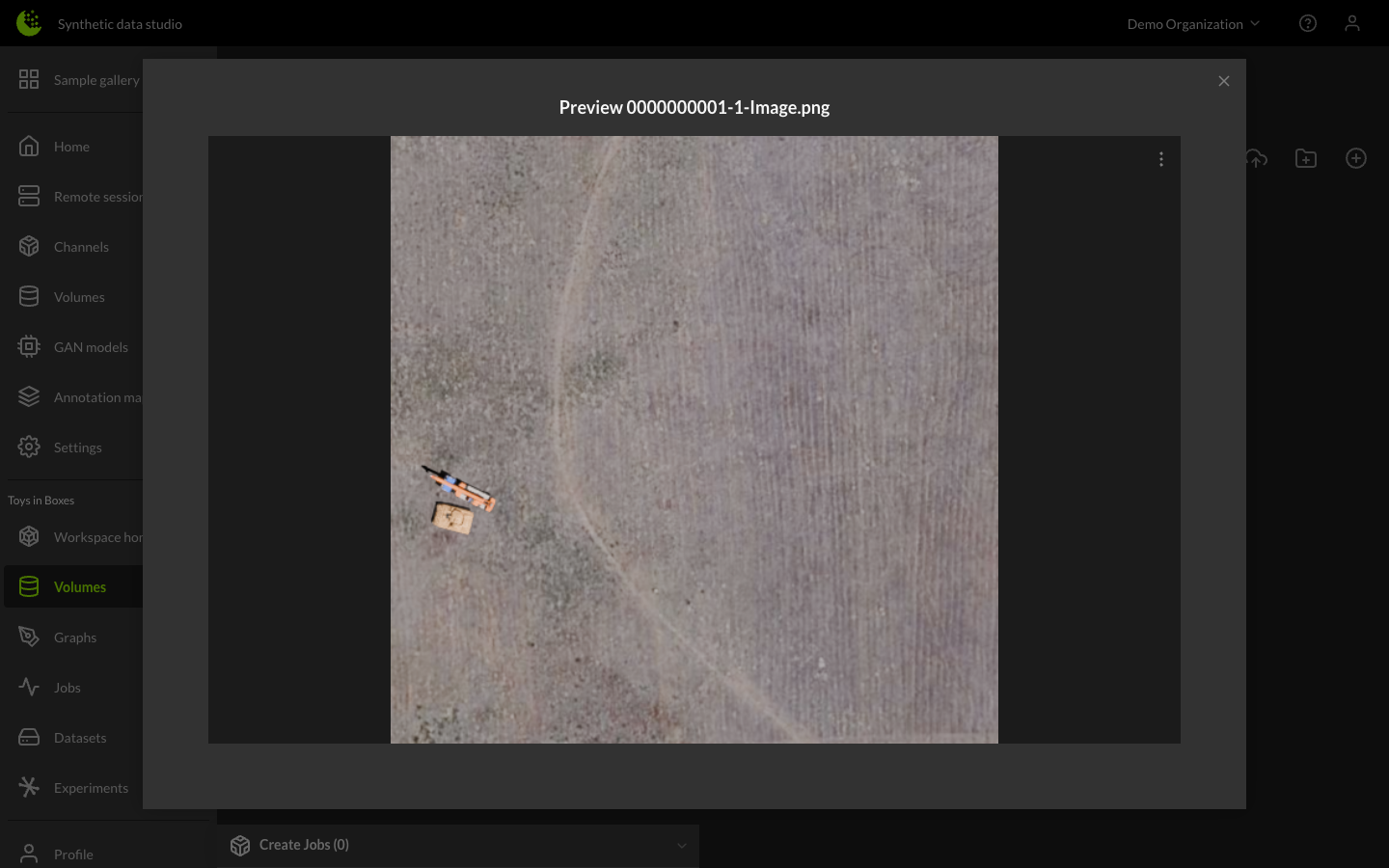
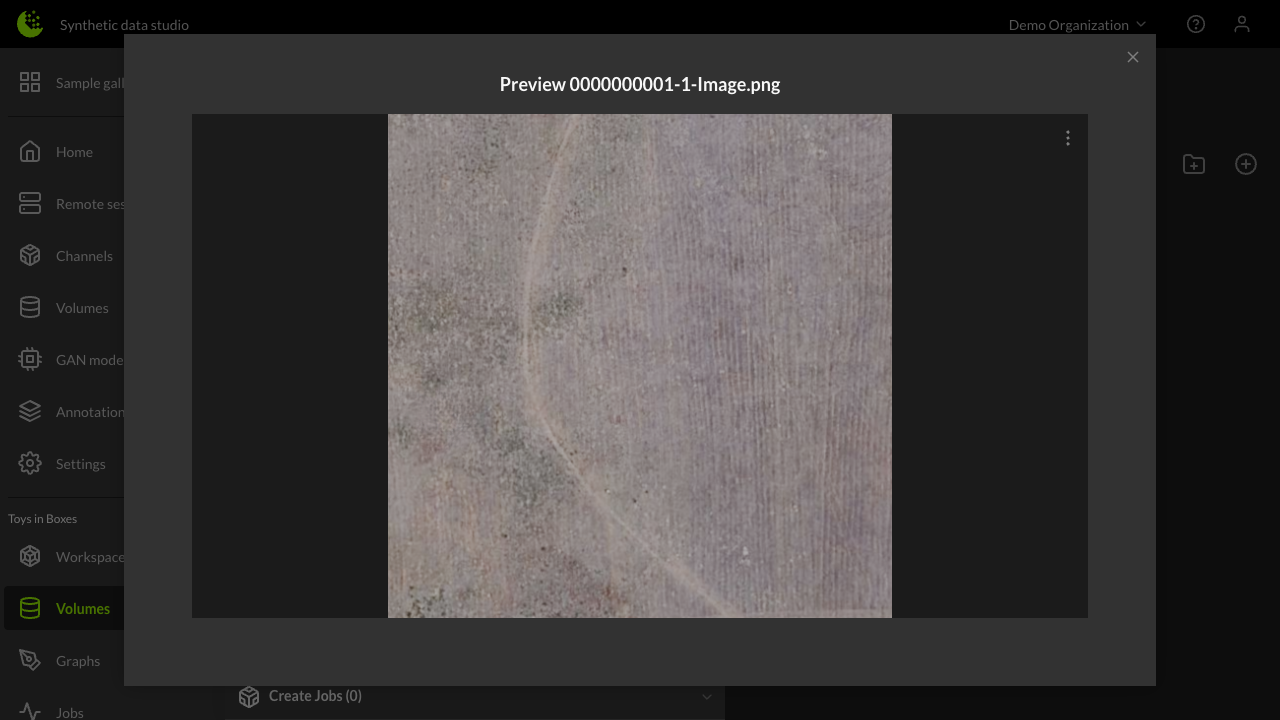
Here are the original and cleaned background images.